

When a Linux service stops working, the first question is simple:
Why did it fail?
On modern Linux servers, services are usually managed by systemd. Web servers, databases, SSH, PHP-FPM, cron, Docker, mail services, and many background processes are started, stopped, monitored, and restarted through systemd units.
When one of these services fails, Linux usually records useful evidence in:
systemctl statusjournalctl- application log files
- kernel messages
- dependency services
- configuration-test output
The key is knowing where to look and in what order.
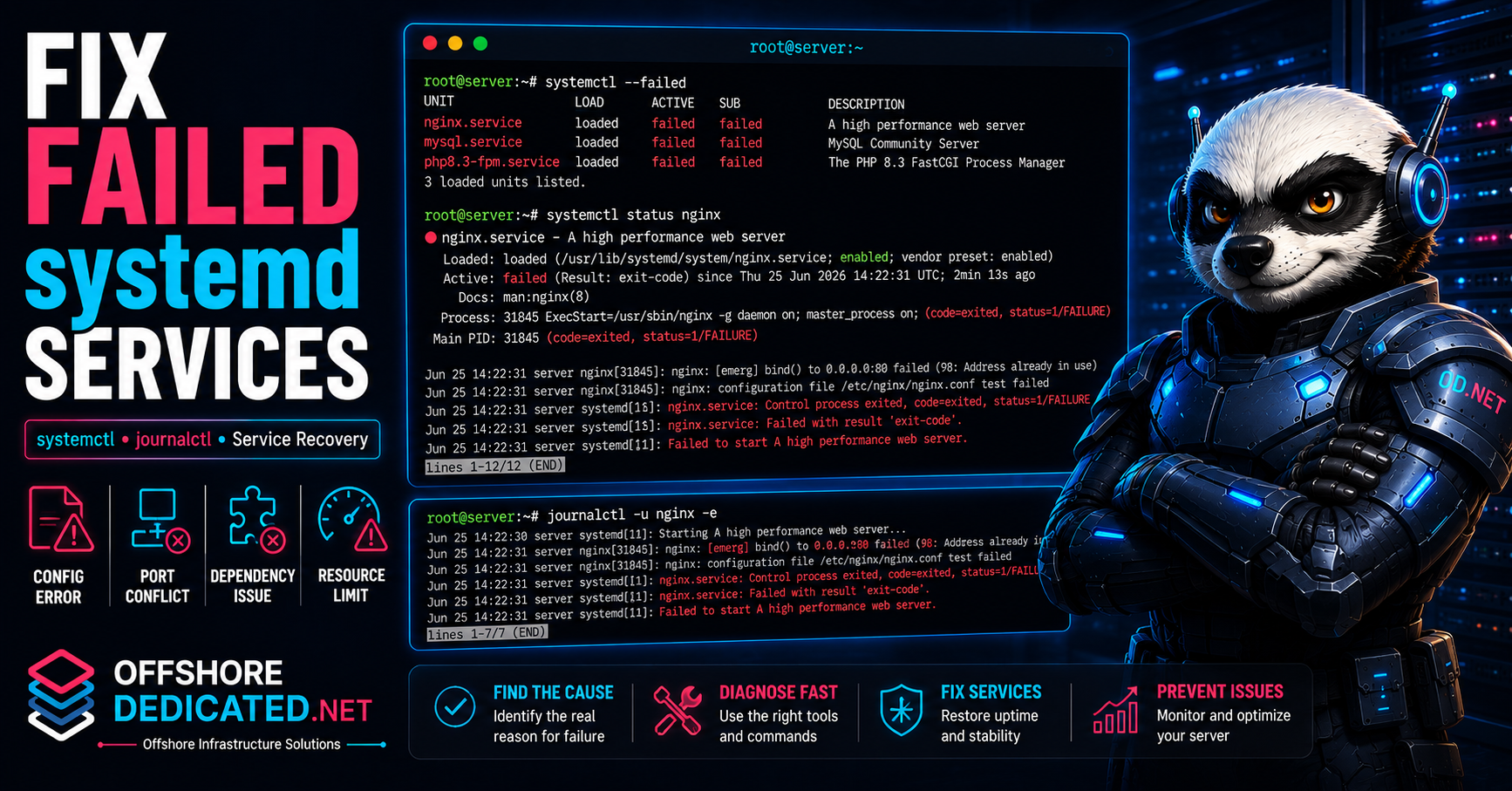
This guide explains how to find why a systemd service failed in Linux using practical commands such as systemctl --failed, systemctl status, journalctl -u, and common troubleshooting checks.
What Does a Failed systemd Service Mean?
A failed systemd service means that systemd attempted to start, run, reload, or monitor a unit, but the service ended in an unsuccessful state.
A service may fail because:
- The configuration file contains an error
- The service cannot bind to a required port
- A required file is missing
- Permissions are incorrect
- A dependency is stopped
- The process crashed
- The server ran out of memory
- The filesystem is full or read-only
- The application exited with a non-zero status
- The service hit a configured limit
- The binary or script path is wrong
A failed service does not always mean the service itself is broken.
For example:
- Nginx may fail because another process is already using port 80.
- MySQL may fail because the disk is full.
- PHP-FPM may stop because the kernel killed it during an OOM event.
- SSH may fail because the configuration file contains an invalid directive.
- A backup service may fail because a mounted storage path is unavailable.
The goal is not simply to restart the service. The goal is to identify the reason it failed.
How to List Failed Services
To list failed systemd units, run:
systemctl --failedExample output may look like:
UNIT            LOAD   ACTIVE SUB    DESCRIPTION
nginx.service   loaded failed failed A high performance web server
mysql.service   loaded failed failed MySQL Community Server
This command may show failed:
- services
- mounts
- sockets
- timers
- devices
- other systemd units
To show only failed services:
systemctl --failed --type=serviceIf no units are failed, the output may show:
0 loaded units listed.That does not always mean there is no problem. A service can be active but still unhealthy at the application level. For example, Nginx may be running while returning 502 errors because PHP-FPM is down.
For a broader server check, combine failed-unit checks with logs, process inspection, and resource monitoring.
How to Check Service Status with systemctl
After identifying a failed service, inspect it with:
sudo systemctl status SERVICE_NAME --no-pager -lFor example:
sudo systemctl status nginx --no-pager -lThe output usually contains:
- current service state
- whether the service is loaded
- whether it is enabled at boot
- main process ID
- exit code
- recent log entries
- start or stop time
- unit file path
A failed service may show:
Active: failed (Result: exit-code)Or:
Main PID: 28411 (code=exited, status=1/FAILURE)Common status clues include:
status=1/FAILURE
status=2/INVALIDARGUMENT
status=203/EXEC
code=killed
Result: timeout
Result: exit-code
Result: signal
These messages help guide the next check.
For example:
status=203/EXECoften points to a missing or non-executable command.Result: timeoutmay mean the service did not start or stop within the configured time.code=killedmay indicate the process was terminated by a signal.status=1/FAILUREusually requires checking logs or configuration output.
The systemctl status output is useful, but it only shows a small amount of recent log data. For the full service history, use journalctl.
How to Read Service Logs with journalctl
To view logs for a specific systemd service, use:
sudo journalctl -u SERVICE_NAMEFor example:
sudo journalctl -u nginxShow the most recent entries:
sudo journalctl -u nginx -eShow the last 100 service log entries:
sudo journalctl -u nginx -n 100Show logs from the last 30 minutes:
sudo journalctl -u nginx --since "30 minutes ago"Show logs from a specific incident window:
sudo journalctl -u nginx \
  --since "2026-06-25 14:00:00" \
  --until "2026-06-25 14:30:00"
For more examples, see our full guide on how to use journalctl in Linux.
Service logs may reveal:
- configuration syntax errors
- missing files
- permission denied messages
- failed dependency connections
- port conflicts
- failed reload attempts
- crash messages
- restart loops
- timeout events
If the service has its own application log under /var/log, check that as well. For traditional log files, see our guide on how to read Linux logs in /var/log.
How to Check Recent Service Failures
When a failure happened recently, avoid reading the entire journal.
Use a time filter:
sudo journalctl -u SERVICE_NAME --since "15 minutes ago"For example:
sudo journalctl -u mysql --since "1 hour ago"You can also check the current boot:
sudo journalctl -u SERVICE_NAME -bFor previous-boot service logs:
sudo journalctl -u SERVICE_NAME -b -1This is useful when a service failed before or during a reboot.
To list available boots:
sudo journalctl --list-bootsA practical service-failure check looks like this:
sudo systemctl status nginx --no-pager -l
sudo journalctl -u nginx --since "30 minutes ago"
systemctl --failed
If the service failed because of something outside the service itself, check kernel messages:
sudo journalctl -k --since "30 minutes ago"Or:
sudo dmesg -T | tail -n 100For kernel-level troubleshooting, see our guide on how to use dmesg in Linux.
How to Find Configuration Errors
Many service failures are caused by invalid configuration.
Before restarting a service repeatedly, test its configuration where possible.
For Nginx:
sudo nginx -tFor Apache on Debian or Ubuntu:
sudo apachectl configtestFor Apache on RHEL-compatible systems:
sudo httpd -tFor SSH:
sudo sshd -tFor named or BIND:
sudo named-checkconfA configuration test may show an exact file and line number.
Example:
nginx: [emerg] invalid number of arguments in "listen" directive in /etc/nginx/conf.d/example.conf:12This is much better than restarting blindly.
A safe Nginx reload workflow is:
sudo nginx -t && sudo systemctl reload nginxThis reloads Nginx only if the configuration test succeeds.
If a service fails immediately after editing a configuration file, compare:
- what changed
- which file was edited
- whether syntax is valid
- whether included files exist
- whether permissions changed
- whether the service user can access required paths
Configuration mistakes are among the easiest failures to fix once the exact file and line are known.
How to Check Port Conflicts
Some services fail because another process is already using the required port.
For example, Nginx may fail with:
bind() to 0.0.0.0:80 failed (98: Address already in use)Check listening ports:
sudo ss -lntpCheck a specific port:
sudo ss -lntp | grep ':80'For HTTPS:
sudo ss -lntp | grep ':443'For MySQL:
sudo ss -lntp | grep ':3306'The output may show the process using the port.
If Apache is already using port 80, Nginx cannot bind to the same address and port unless the configuration is designed for that.
Do not kill a process immediately without confirming what it is.
Check the process first:
sudo ps -fp PROCESS_IDThen decide whether the process is expected, duplicated, or misconfigured.
Port conflicts commonly happen after:
- installing another web server
- restoring a control-panel configuration
- running a manual service instance
- enabling duplicate virtual host configurations
- changing proxy settings
- starting a container that maps the same port
For network and port checks, see our guide on how to check open ports in Linux.
How to Check Missing Files and Permissions
A service may fail because it cannot access a required file.
Common examples include:
- missing TLS certificate
- missing private key
- missing socket file
- missing configuration include
- missing application directory
- wrong file ownership
- wrong directory permissions
- inaccessible log path
- invalid executable path
Service logs may show messages such as:
Permission denied
No such file or directory
cannot load certificate
failed to open file
unable to access socket
Check whether a file exists:
ls -lah /path/to/fileCheck directory ownership:
ls -ld /path/to/directoryCheck the full path:
namei -l /path/to/fileThe namei -l command is useful because permissions on a parent directory can block access even if the file itself looks correct.
For example, Nginx may have permission to read a certificate file but not permission to traverse the parent directory.
Check which user the service runs as:
systemctl cat SERVICE_NAMEOr inspect running processes:
ps aux | grep SERVICE_NAMEAvoid fixing permission problems by making files world-writable. That can create security problems.
Instead, correct the owner, group, and minimum required permissions.
How to Check Dependencies
A service may fail because another required service is unavailable.
For example:
- A web application may need MySQL or MariaDB.
- Nginx may need PHP-FPM.
- A backup service may need mounted storage.
- A mail service may need DNS resolution.
- A monitoring agent may need network connectivity.
- Docker containers may depend on the Docker daemon.
Check dependencies declared in the systemd unit:
systemctl list-dependencies SERVICE_NAMEExample:
systemctl list-dependencies nginxCheck a related service manually:
sudo systemctl status php8.3-fpm
sudo systemctl status mariadb
Read related logs from the same time period:
sudo journalctl -u nginx --since "30 minutes ago"
sudo journalctl -u php8.3-fpm --since "30 minutes ago"
sudo journalctl -u mariadb --since "30 minutes ago"
This helps build the failure sequence.
For example:
MariaDB stops
        ↓
Application cannot connect to database
        ↓
PHP-FPM workers become occupied
        ↓
Nginx returns upstream errors
In this case, the Nginx error is only the visible symptom. The database failure is closer to the root cause.
How to Check Kernel or Resource Problems
A service may fail because the server itself has a resource or kernel-level problem.
Check disk space:
df -hCheck inode usage:
df -iCheck memory:
free -mCheck load:
uptimeCheck top CPU processes:
ps aux --sort=-%cpu | head -20Check top memory processes:
ps aux --sort=-%mem | head -20Check kernel messages:
sudo dmesg -T | tail -n 100Search for OOM kills:
sudo dmesg -T | grep -Ei "out of memory|oom|killed process"Search for disk or filesystem errors:
sudo dmesg -T | grep -Ei "I/O error|read-only|EXT4-fs|XFS|timeout|reset"A failed service may be the result of:
- full disk
- full inode table
- memory exhaustion
- OOM killer
- read-only filesystem
- disk I/O errors
- storage latency
- high system load
- network interface problems
For broader server analysis, see:
- How to Investigate a Slow Linux Server
- How to Diagnose Memory Pressure in Linux
- How to Investigate High Disk I/O in Linux
Do not assume the service configuration is wrong until server-level conditions have been checked.
Practical systemd Service Failure Examples
Example 1: Nginx fails after a configuration edit
Check status:
sudo systemctl status nginx --no-pager -lRead recent logs:
sudo journalctl -u nginx --since "15 minutes ago"Test configuration:
sudo nginx -tIf the output names a file and line number, correct the configuration and test again before reloading.
Example 2: Apache and Nginx conflict on port 80
Nginx logs show:
Address already in useCheck port ownership:
sudo ss -lntp | grep ':80'If Apache is already listening on port 80, decide which service should own the port, then adjust the configuration.
Example 3: MySQL fails because disk is full
Check MySQL:
sudo systemctl status mysqlCheck disk:
df -hIf /var or / is full, MySQL may fail to write logs, temporary files, or database data.
Inspect large files:
sudo du -ah /var | sort -h | tail -30Example 4: PHP-FPM is killed by memory pressure
Check PHP-FPM:
sudo systemctl status php8.3-fpmSearch kernel messages:
sudo dmesg -T | grep -Ei "out of memory|oom|killed process"If PHP-FPM was killed by the OOM killer, investigate memory usage and worker configuration before simply restarting the service.
Example 5: SSH fails after a config change
Test SSH configuration:
sudo sshd -tIf the test fails, correct the SSH configuration before restarting.
This is especially important when working remotely. A broken SSH restart can lock you out of the server.
Common Mistakes When Fixing Failed Services
Restarting repeatedly without checking logs
A restart may temporarily restore service, but it does not explain why the service failed.
Ignoring the first error
Later errors may be side effects. The first meaningful error often points closer to the root cause.
Checking only one service
A visible failure may come from a dependency. Check related services in the same time window.
Skipping configuration tests
Many services provide syntax-check commands. Use them before reloads or restarts.
Killing unknown processes
If a port is already in use, identify the process before terminating it.
Changing permissions too broadly
Avoid using unsafe permissions such as chmod 777. Fix ownership and access properly.
Ignoring disk and memory
A service failure may be caused by full storage, full inodes, OOM kills, or read-only filesystems.
Restarting SSH carelessly
Always test SSH configuration before restarting the service, especially on remote servers.
When Failed Services Need Server Management
A single failed service may be easy to fix. Recurring failures usually require deeper investigation.
Repeated systemd failures may indicate:
- unstable application configuration
- broken dependencies
- disk-space problems
- memory pressure
- OOM kills
- failed upgrades
- log growth
- permission drift
- storage problems
- poor service supervision
- overloaded infrastructure
OffshoreDedicated.NET provides expert server management for Linux VPS, cloud, and dedicated server environments.
When service failures are caused by infrastructure limits, the solution may involve resizing, moving, or redesigning the hosting environment.
Relevant options include:
- Offshore Cloud servers for flexible infrastructure requirements
- Offshore Bulgaria Dedicated servers Offshore Streaming Dedicated servers for sustained workloads requiring dedicated CPU, memory, storage, and network capacity
If the issue is application-level, more hardware alone may not fix it. The correct approach is to identify whether the failure comes from configuration, resource limits, dependencies, or the underlying server.
Frequently Asked Questions
How do I see failed systemd services?
Use:
systemctl --failedTo show only failed services:
systemctl --failed --type=serviceHow do I check why a service failed?
Use:
sudo systemctl status SERVICE_NAME --no-pager -l
sudo journalctl -u SERVICE_NAME --since "30 minutes ago"
How do I view logs for a systemd service?
Use:
sudo journalctl -u SERVICE_NAMEFor example:
sudo journalctl -u nginxHow do I clear a failed systemd state?
After fixing the issue, use:
sudo systemctl reset-failed SERVICE_NAMETo reset all failed unit states:
sudo systemctl reset-failedThis clears the failed state, but it does not fix the original cause.
Why does systemd show status=203/EXEC?
status=203/EXEC often means systemd could not execute the configured command. Possible causes include a missing binary, wrong path, missing execute permission, invalid script interpreter, or broken unit file.
Should I restart a failed service immediately?
If the service is critical, restarting may be necessary to restore availability. However, collect status and logs first when possible so the original failure is not hidden.
How do I check if a service is enabled at boot?
Use:
systemctl is-enabled SERVICE_NAMEHow do I see a service unit file?
Use:
systemctl cat SERVICE_NAMEFinal Thoughts
Finding why a systemd service failed requires a structured approach.
Start with:
systemctl --failed
sudo systemctl status SERVICE_NAME --no-pager -l
sudo journalctl -u SERVICE_NAME --since "30 minutes ago"
Then check:
- configuration syntax
- port conflicts
- missing files
- permissions
- dependencies
- disk space
- memory pressure
- kernel messages
A failed service is often only the visible symptom. The real cause may be a dependency, filesystem issue, OOM event, or resource limit.
By combining systemctl, journalctl, /var/log, dmesg, and basic resource checks, administrators can identify the actual reason for the failure instead of relying on repeated restarts.