
Linux terminals are normally associated with serious work: managing services, checking logs, installing software, and troubleshooting servers. They can also contain a little harmless fun.
Two classic programs, cowsay and fortune, can transform an ordinary terminal into a talking collection of ASCII animals, characters, and random quotations.
Neither command will optimize a database or secure a firewall. However, they offer an entertaining way for new Linux users to practise installing packages, using options, piping output between commands, and modifying shell startup files.
What Is the cowsay Command?
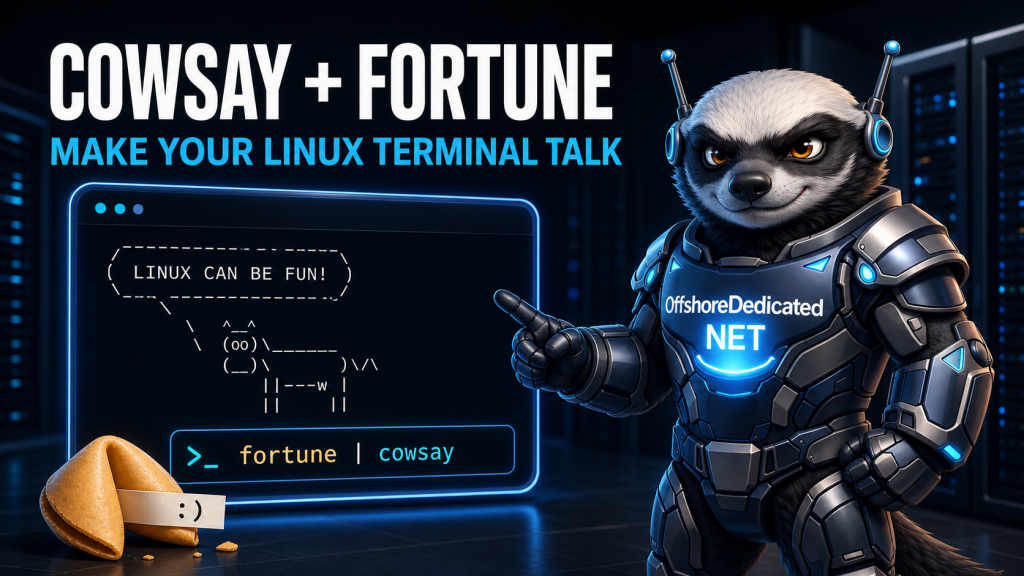
The cowsay command places text inside a speech balloon displayed above an ASCII-art cow.
Try:
cowsay "Linux can be fun!"The result resembles this:
 ___________________
< Linux can be fun! >
 -------------------
        \   ^__^
         \  (oo)\_______
            (__)\       )\/\
                ||----w |
                ||     ||
The exact spacing can vary according to the version, message length, and terminal.
Despite its name, cowsay is not limited to cows. Packages commonly include other character templates, known as cowfiles, including Tux, dragons, sheep, skeletons, koalas, turkeys, and the BSD daemon.
The current Debian cowsay package describes it as a configurable talking cow capable of using several alternative ASCII-art creatures.
What Is the fortune Command?
The fortune command selects a random quotation, saying, joke, or short piece of text from an installed fortune database.
Run it without additional options:
fortuneA result might look similar to:
The best way to understand a system is to explore it.The actual output changes whenever the command is run.
On Debian-based distributions, fortune-mod provides the program, while packages such as fortunes-min or fortunes provide collections of messages. Debian’s current fortune-mod package description calls them “fortune cookies on demand.”
The content depends on the fortune databases installed on the system. Administrators should review additional collections before using them on business, educational, or shared servers because some optional databases may contain unsuitable material.
How to Install cowsay and fortune
Package names vary slightly between Linux distributions.
Ubuntu and Debian
Update the package information and install both programs:
sudo apt update
sudo apt install cowsay fortune-mod
The minimal fortune database may be installed automatically. To add the larger standard collection where available, use:
sudo apt install fortunesOn some Debian-based systems, cowsay may be installed under /usr/games. If the shell cannot find it, try:
/usr/games/cowsay "Hello from Linux"You can see whether the directory is included in your command path with:
printf '%s\n' "$PATH"Fedora
On supported Fedora installations, try:
sudo dnf install cowsay fortune-modRepository availability may differ between releases. Search the enabled repositories if a package is not found:
dnf search cowsay
dnf search fortune
Arch Linux
On Arch Linux and compatible distributions:
sudo pacman -S cowsay fortune-modAlways install software from trusted distribution repositories. Avoid downloading unfamiliar replacement scripts merely because a package is unavailable under the expected name.
A small Linux VPS with root access can also provide a useful isolated environment for practising commands without changing a production machine.
Make the Cow Say a Custom Message
Pass any quoted message to cowsay:
cowsay "Backups completed successfully."Quotation marks keep the complete sentence together as one command argument.
You can also send output from another command through a pipe:
date | cowsayThis makes the cow display the current date and time.
To show the machine’s hostname:
hostname | cowsayTo include information from multiple commands, group the output:
{
    echo "Server status"
    uptime
    df -h /
} | cowsay
This example is more than entertainment: it demonstrates how the pipe operator passes the standard output of one command into another program.
For additional command-line fundamentals, see our guide to practical Linux administration commands.
Combine fortune with cowsay
The classic combination sends a random fortune into cowsay:
fortune | cowsayHere, two commands perform separate jobs:
fortuneselects and prints a message.- The pipe sends that text to
cowsay. cowsayplaces the received text inside its speech balloon.
This small example teaches one of the most useful ideas in Unix-like systems: simple programs can be combined to produce a new result.
Reverse the mood by using cowthink:
fortune | cowthinkInstead of a speech balloon, the character displays a thought balloon.
Explore Different cowsay Characters
List the available cowfiles with:
cowsay -lThe available names depend on the installed package. Choose one with the -f option:
cowsay -f tux "Linux approves."Try a dragon:
fortune | cowsay -f dragonOr a sheep:
cowsay -f sheep "Check your backups."If a listed character name contains no spaces, it can normally be passed directly after -f.
You can find the directories searched for cowfiles with:
cowsay -lThe command’s manual page provides the options supported by your installed version:
man cowsayChange the Cow’s Appearance
cowsay provides several modes that change its eyes or tongue.
Make the cow appear surprised:
cowsay -e "^^" "The server is online!"Use tongue text:
cowsay -T "U " "Time for a coffee break."Some versions include ready-made modes. For example:
cowsay -d "Disk space is getting low."Use cowsay --help or its manual page to check the precise options available:
cowsay --help
man cowsay
These appearance settings are purely visual. A “dead” or “wired” cow does not indicate the actual health of the server.
Control the Width of the Speech Balloon
Long text can produce an excessively wide result. Use -W to set the approximate wrapping width:
fortune | cowsay -W 50This is helpful in smaller terminal windows or when copying output into a message.
You can combine options:
fortune | cowsay -f tux -W 45Options normally appear before the custom message, while input received through a pipe supplies the text automatically.
Display a Fortune When Opening a Terminal
You can run fortune | cowsay automatically when an interactive Bash session starts.
Open the current user’s Bash configuration:
nano ~/.bashrcAdd:
if [[ $- == *i* ]] && command -v fortune >/dev/null && command -v cowsay >/dev/null; then
    fortune | cowsay -W 50
fi
Open a new interactive terminal to test it.
The interactive-shell check is important. Startup output should not be printed during non-interactive operations because it may interfere with scripts, file transfers, automation tools, or programs expecting clean command output.
On a remote production server, automatic ASCII output can become irritating or confusing. Consider creating an alias instead:
alias cowfortune='fortune | cowsay -W 50'Reload the Bash configuration:
source ~/.bashrcThen run:
cowfortuneThis provides the same result only when requested.
An instantly deployed cloud server can be a suitable temporary environment for experimenting with shell customization before applying changes elsewhere.
Create a Simple Login Reminder
Although cowsay is a novelty, it can display a friendly reminder:
cowsay -f tux "Remember to verify backups before maintenance."You could create a small command file:
nano ~/server-reminder.shAdd:
#!/usr/bin/env bash

printf '%s\n' "Check monitoring, backups and pending updates." | cowsay -f tux -W 50
Make it executable:
chmod 700 ~/server-reminder.shRun it:
~/server-reminder.shDo not use cowsay as a replacement for monitoring, alerting, logging, or an official login warning. Important security and legal notices should remain clear, predictable, and professionally maintained.
Projects needing sustained workloads and direct hardware control may be better suited to a customizable dedicated server. The terminal tools remain the same, but the underlying infrastructure model is different. Our explanation of how web-hosting infrastructure works covers those layers in more detail.
Troubleshooting Common Problems
cowsay: Command Not Found
Confirm that the package is installed:
command -v cowsayOn Debian or Ubuntu, also check:
ls -l /usr/games/cowsayIf the file exists but /usr/games is missing from PATH, run it with its full path or correct the user’s shell environment.
fortune Produces No Output
Check whether the command exists:
command -v fortuneThen verify that a fortune database package is installed. On Debian-based systems:
dpkg -l | grep -E 'fortune|fortunes'The program and its message database may be packaged separately.
A Character Cannot Be Found
List the installed templates:
cowsay -lUse a name exactly as shown. Different distributions can ship different collections.
How to Remove the Commands
On Ubuntu or Debian:
sudo apt remove cowsay fortune-modRemove the larger message collection if you installed it separately:
sudo apt remove fortunesAlso remove any related line or alias you added to ~/.bashrc.
On Fedora:
sudo dnf remove cowsay fortune-modOn Arch Linux:
sudo pacman -R cowsay fortune-modRemoving these packages does not affect essential server services.
Final Thoughts
cowsay and fortune are small programs with no serious server-management purpose, but that is exactly why people enjoy them.
They give new Linux users a friendly way to practise package installation, command options, pipes, aliases, shell scripts, and startup-file customization. Experienced administrators sometimes use them for demonstrations, harmless reminders, or simply to make a quiet terminal more entertaining.
Try a custom message, explore the installed characters, and combine the commands:
fortune | cowsayJust remember that a talking ASCII cow is optional. Backups, monitoring, updates, and sound administration are not.