

An Nginx 502 Bad Gateway error usually means Nginx received an invalid or failed response from an upstream service.
In many Linux web hosting setups, Nginx does not process PHP directly. Instead, it forwards PHP requests to PHP-FPM or another backend application service. If that backend is stopped, overloaded, misconfigured, unreachable, or unable to respond correctly, Nginx may return a 502 error to the visitor.
Administrators commonly investigate Nginx 502 errors when:
- A website suddenly shows “502 Bad Gateway”
- PHP-FPM is stopped or crashed
- Nginx cannot connect to an upstream socket
- A backend application is refusing connections
- The server is under memory pressure
- A recent configuration change broke upstream routing
- A web application becomes unstable under traffic
- File or socket permissions are incorrect
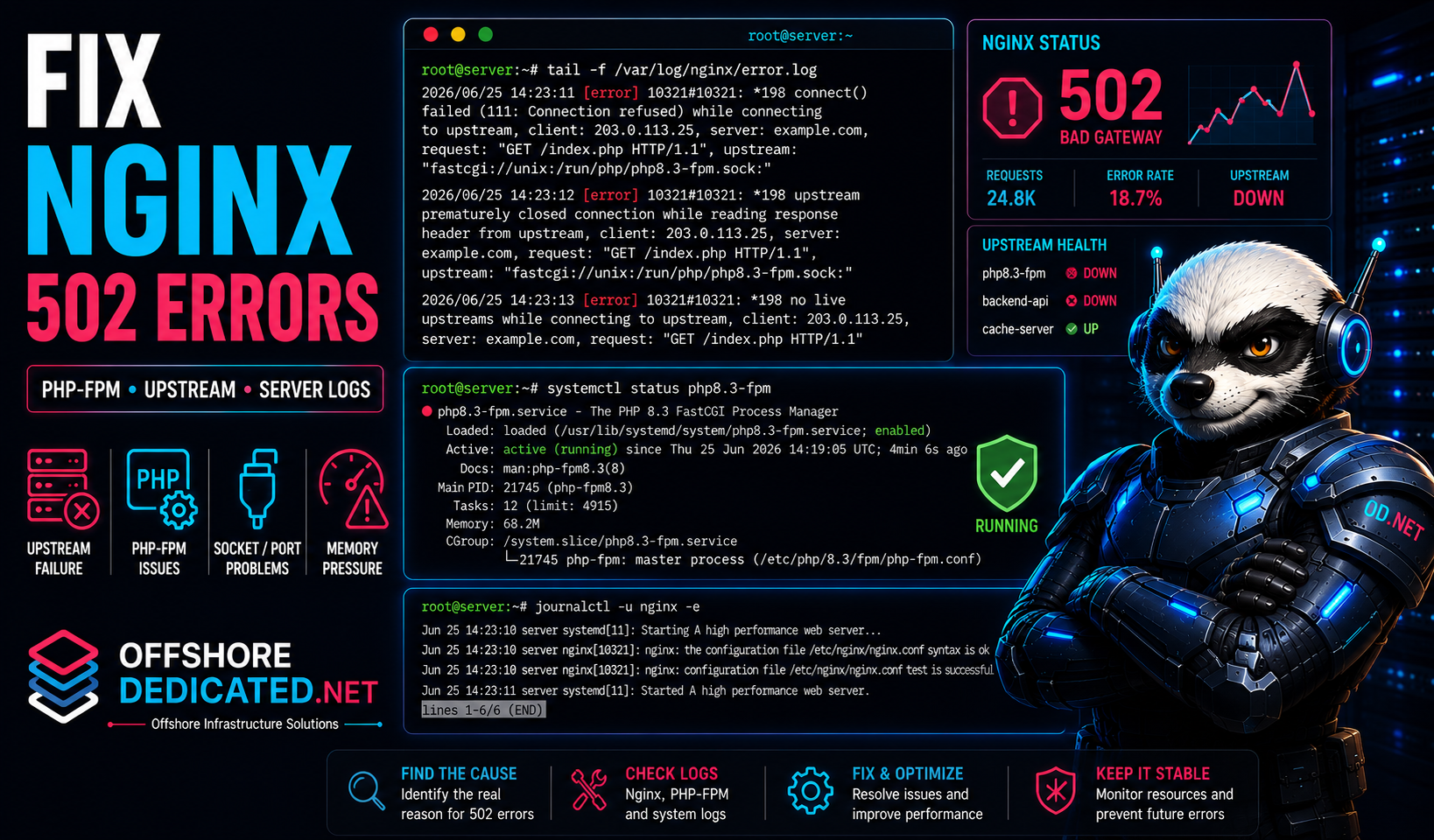
This guide explains how to troubleshoot Nginx 502 Bad Gateway errors in Linux using Nginx logs, PHP-FPM status, socket checks, journalctl, systemctl, and basic server resource diagnostics.
What Does Nginx 502 Bad Gateway Mean?
Nginx often works as a reverse proxy. It receives a client request and forwards it to another service, such as:
- PHP-FPM
- Node.js
- Python application server
- Ruby application server
- Docker container
- Apache backend
- upstream web service
- internal API
A 502 Bad Gateway error means Nginx could not successfully complete that upstream communication.
Common Nginx 502 log messages include:
connect() failed (111: Connection refused) while connecting to upstreamupstream prematurely closed connection while reading response header from upstreamno live upstreams while connecting to upstreamconnect() to unix:/run/php/php8.3-fpm.sock failedThe browser only shows the user-facing error. The real cause is usually found in Nginx error logs, PHP-FPM logs, service status output, or server resource checks.
Common Causes of Nginx 502 Errors
Nginx 502 errors are commonly caused by problems between Nginx and the upstream service.
Typical causes include:
- PHP-FPM is stopped
- PHP-FPM crashed
- PHP-FPM socket path is wrong
- PHP-FPM is listening on a different port
- socket permissions are incorrect
- Nginx upstream configuration is wrong
- backend service is overloaded
- backend service is refusing connections
- backend process was killed by the OOM killer
- server memory is exhausted
- filesystem is full
- application code is crashing
- container or backend network is broken
- timeout values are too low for the workload
A 502 error does not automatically mean Nginx itself is broken.
Nginx may be working correctly and simply reporting that the backend failed.
Check Nginx Error Logs First
Start with the Nginx error log.
Common locations include:
/var/log/nginx/error.logShow the latest Nginx errors:
sudo tail -n 100 /var/log/nginx/error.logFollow errors in real time:
sudo tail -F /var/log/nginx/error.logSearch for upstream-related errors:
sudo grep -Ei "upstream|connect\(\) failed|connection refused|timed out|no live upstreams" \
/var/log/nginx/error.log |
tail -50
If the error mentions PHP-FPM, a socket, or an upstream address, that is the next place to check.
Example:
connect() to unix:/run/php/php8.3-fpm.sock failed (2: No such file or directory)This usually means Nginx is configured to use a PHP-FPM socket that does not exist.
That can happen when:
- PHP-FPM is not running
- the PHP version changed
- the pool uses a different socket path
- the Nginx configuration points to the wrong socket
- PHP-FPM failed before creating the socket
For more detail on reading log files directly, see our guide on how to read Linux logs in /var/log.
Check Whether PHP-FPM Is Running
If the site uses PHP, check PHP-FPM.
Find available PHP-FPM services:
systemctl list-units --type=service --all | grep -i fpmCommon service names include:
php8.1-fpm
php8.2-fpm
php8.3-fpm
php-fpm
Check the service status:
sudo systemctl status php8.3-fpm --no-pager -lReplace php8.3-fpm with the actual service name on your server.
If PHP-FPM is stopped, start it:
sudo systemctl start php8.3-fpmIf it is failed, inspect its logs:
sudo journalctl -u php8.3-fpm --since "30 minutes ago"Common PHP-FPM problems include:
- invalid pool configuration
- memory exhaustion
- too many workers
- missing socket directory
- permission problems
- failed reload
- process crash
- PHP extension errors
If PHP-FPM repeatedly fails, do not simply keep restarting it. Find the reason for the failure using systemctl status and journalctl.
For a broader service-failure workflow, see how to find why a systemd service failed in Linux.
Check the PHP-FPM Socket or Port
Nginx and PHP-FPM must agree on how they communicate.
PHP-FPM may listen on a Unix socket such as:
/run/php/php8.3-fpm.sockOr on a TCP address such as:
127.0.0.1:9000Check the Nginx configuration:
sudo grep -R "fastcgi_pass" /etc/nginx/Example socket configuration:
fastcgi_pass unix:/run/php/php8.3-fpm.sock;Example TCP configuration:
fastcgi_pass 127.0.0.1:9000;Now check whether that socket or port exists.
For a Unix socket:
ls -lah /run/php/Or:
sudo ss -lxnp | grep phpFor a TCP port:
sudo ss -lntp | grep ':9000'If Nginx points to:
/run/php/php8.3-fpm.sockbut PHP-FPM actually created:
/run/php/php8.2-fpm.sockNginx will not be able to reach PHP-FPM.
The socket or port is controlled by the PHP-FPM pool configuration. Common pool files include:
/etc/php/8.3/fpm/pool.d/www.conf
/etc/php-fpm.d/www.conf
Look for the listen directive.
Example:
listen = /run/php/php8.3-fpm.sockNginx and PHP-FPM must use the same socket or port.
Check Nginx Upstream Configuration
A 502 error can be caused by incorrect Nginx upstream configuration.
Test the Nginx configuration:
sudo nginx -tIf the syntax test passes, inspect the active virtual host or server block.
Common locations include:
/etc/nginx/sites-enabled/
/etc/nginx/conf.d/
/etc/nginx/nginx.conf
Search for proxy or FastCGI settings:
sudo grep -R "proxy_pass\|fastcgi_pass\|upstream" /etc/nginx/Common configuration problems include:
- wrong PHP-FPM socket path
- wrong upstream port
- backend container name changed
- upstream server is unavailable
- duplicate or conflicting server blocks
- proxy points to an internal service that is down
- Nginx includes an old configuration file
- configuration was edited but not reloaded
After editing Nginx configuration, always test first:
sudo nginx -tThen reload safely:
sudo systemctl reload nginxOr combine both:
sudo nginx -t && sudo systemctl reload nginxAvoid restarting Nginx repeatedly without checking logs. A reload is usually enough after configuration changes if the service is already running.
Check Service Logs with journalctl
Nginx and PHP-FPM may record useful service-level messages in the systemd journal.
Check Nginx logs:
sudo journalctl -u nginx --since "30 minutes ago"Show recent Nginx journal entries:
sudo journalctl -u nginx -eCheck PHP-FPM logs:
sudo journalctl -u php8.3-fpm --since "30 minutes ago"Check both services during the same incident window:
sudo journalctl -u nginx \
  --since "2026-06-25 14:00:00" \
  --until "2026-06-25 14:30:00"
sudo journalctl -u php8.3-fpm \
--since "2026-06-25 14:00:00" \
--until "2026-06-25 14:30:00"This helps determine which service failed first.
Example timeline:
14:03  PHP-FPM reaches worker limit
14:05  PHP-FPM starts refusing new requests
14:06  Nginx logs upstream connection failures
14:07  Visitors see 502 Bad Gateway
In that case, Nginx is showing the symptom. PHP-FPM capacity or application behavior is closer to the cause.
For more journalctl examples, see how to use journalctl in Linux.
Check for Port and Process Problems
When Nginx proxies to a TCP backend, confirm that the backend is actually listening.
Show listening TCP ports:
sudo ss -lntpCheck a specific backend port:
sudo ss -lntp | grep ':9000'Check HTTP backend port 8080:
sudo ss -lntp | grep ':8080'Check whether Nginx itself is running:
ps aux | grep nginxCheck PHP-FPM processes:
ps aux | grep php-fpmIf the backend should listen on 127.0.0.1:9000 but no process is listening, Nginx cannot connect to it.
If the backend is listening on a different IP address or port, update either the backend configuration or the Nginx upstream configuration.
For more port-checking commands, see how to check open ports in Linux.
Check Memory and Resource Pressure
Repeated Nginx 502 errors may be caused by resource exhaustion.
Check memory:
free -mCheck load average:
uptimeCheck disk space:
df -hCheck inode usage:
df -iCheck memory-heavy processes:
ps aux --sort=-%mem | head -20Check CPU-heavy processes:
ps aux --sort=-%cpu | head -20Search kernel messages for OOM events:
sudo dmesg -T | grep -Ei "out of memory|oom|killed process"Or:
sudo journalctl -k --since "1 hour ago" | grep -Ei "out of memory|oom|killed process"If PHP-FPM was killed by the OOM killer, Nginx may show a 502 error because the upstream process disappeared.
Resource-related causes may include:
- not enough RAM
- too many PHP-FPM workers
- high traffic spike
- slow database queries
- long-running PHP scripts
- no swap
- full disk
- overloaded VPS
- storage latency
For deeper diagnosis, see:
- How to Diagnose Memory Pressure in Linux
- How to Investigate a Slow Linux Server
- How to Investigate High Disk I/O in Linux
Check File Permissions and Socket Ownership
A 502 error can occur when Nginx cannot access the PHP-FPM socket.
Check the socket:
ls -lah /run/php/Example:
srw-rw---- 1 www-data www-data 0 Jun 25 14:10 php8.3-fpm.sockNginx must run as a user that can access the socket.
Check the Nginx user:
grep -R "^user" /etc/nginx/nginx.confCommon Nginx users include:
www-data
nginx
apache
Check the PHP-FPM pool settings:
sudo grep -E "^(user|group|listen|listen.owner|listen.group|listen.mode)" \
/etc/php/8.3/fpm/pool.d/www.conf
Possible settings include:
listen.owner = www-data
listen.group = www-data
listen.mode = 0660
If Nginx runs as nginx but the socket is owned by www-data with restrictive permissions, Nginx may not be able to connect.
After changing PHP-FPM pool configuration, restart PHP-FPM:
sudo systemctl restart php8.3-fpmThen reload Nginx:
sudo nginx -t && sudo systemctl reload nginxAvoid using unsafe permissions such as 0777 to “fix” socket access. Correct the service users, groups, and socket permissions instead.
Restart or Reload Services Safely
Before restarting services, collect useful evidence:
sudo systemctl status nginx --no-pager -l
sudo systemctl status php8.3-fpm --no-pager -l
sudo journalctl -u nginx --since "30 minutes ago"
sudo journalctl -u php8.3-fpm --since "30 minutes ago"
Test Nginx configuration:
sudo nginx -tReload Nginx safely:
sudo systemctl reload nginxRestart PHP-FPM if needed:
sudo systemctl restart php8.3-fpmThen check status again:
sudo systemctl status nginx --no-pager -l
sudo systemctl status php8.3-fpm --no-pager -l
Watch Nginx logs while testing:
sudo tail -F /var/log/nginx/error.logReload the website and confirm that new 502 errors are no longer appearing.
Practical Nginx 502 Troubleshooting Workflow
Use this sequence when a Linux server shows Nginx 502 Bad Gateway errors.
1. Check the Nginx error log
sudo tail -n 100 /var/log/nginx/error.log2. Check Nginx service status
sudo systemctl status nginx --no-pager -l3. Check PHP-FPM status
sudo systemctl status php8.3-fpm --no-pager -l4. Check recent service logs
sudo journalctl -u nginx --since "30 minutes ago"
sudo journalctl -u php8.3-fpm --since "30 minutes ago"
5. Verify the socket or port
sudo ss -lxnp | grep php
sudo ss -lntp | grep ':9000'
6. Check Nginx upstream configuration
sudo grep -R "fastcgi_pass\|proxy_pass\|upstream" /etc/nginx/7. Test Nginx configuration
sudo nginx -t8. Check memory and disk
free -m
df -h
df -i
uptime
9. Search for OOM events
sudo dmesg -T | grep -Ei "out of memory|oom|killed process"10. Reload or restart safely
sudo nginx -t && sudo systemctl reload nginx
sudo systemctl restart php8.3-fpm
This workflow moves from the visible Nginx error toward the upstream service, socket, configuration, and server-level conditions.
Common Mistakes When Fixing 502 Errors
Restarting Nginx only
If PHP-FPM or the backend application is the real problem, restarting Nginx alone will not fix the cause.
Ignoring the Nginx error log
The browser error is generic. The Nginx error log usually contains the useful detail.
Using the wrong PHP-FPM socket path
After PHP upgrades, Nginx may still point to an old socket such as php8.1-fpm.sock while PHP-FPM now uses php8.3-fpm.sock.
Changing permissions too broadly
Do not use insecure permissions such as chmod 777 on sockets or application directories. Fix ownership and service-user access properly.
Increasing timeouts without checking the backend
A timeout may be caused by slow database queries, overloaded PHP workers, or memory pressure.
Ignoring OOM kills
If the kernel killed PHP-FPM or MySQL, the 502 error is only a symptom.
Forgetting to test Nginx configuration
Always run:
sudo nginx -tbefore reloading or restarting Nginx.
When Nginx 502 Errors Need Server Management
A single Nginx 502 error may be caused by a temporary backend restart or a simple configuration issue.
Repeated 502 errors usually need deeper investigation.
Recurring causes may include:
- unstable PHP-FPM workers
- memory pressure
- overloaded VPS resources
- slow MySQL queries
- application crashes
- broken upstream configuration
- incorrect socket permissions
- disk or filesystem problems
- poor service supervision
- high traffic spikes
- backend containers restarting
OffshoreDedicated.NET provides expert server management for Linux web hosting, VPS, cloud, and dedicated server environments.
For website owners who prefer managed infrastructure, offshore web hosting can be suitable for standard websites and PHP applications.
For applications needing isolated resources, offshore VPS servers provide dedicated virtual environments with greater control.
For workloads that require flexible deployment and scaling, offshore cloud servers may be a better fit.
For sustained high-traffic or resource-heavy applications, offshore dedicated servers provide dedicated CPU, memory, storage, and network capacity.
For location-specific infrastructure, offshore Bulgaria dedicated servers are also available.
For high-throughput use cases, offshore bandwidth commit servers can support workloads where predictable bandwidth capacity matters.
Streaming workloads with Nginx, proxying, or media delivery requirements can also be deployed on offshore streaming servers.
The best solution depends on whether the 502 errors are caused by configuration, application behavior, resource limits, traffic load, or backend service instability.
Frequently Asked Questions
What causes Nginx 502 Bad Gateway?
Nginx usually returns 502 Bad Gateway when it cannot get a valid response from an upstream service such as PHP-FPM, a backend application server, a container, or another proxy target.
How do I check Nginx 502 errors?
Start with:
sudo tail -n 100 /var/log/nginx/error.logThen check the upstream service, such as PHP-FPM:
sudo systemctl status php8.3-fpmHow do I know if PHP-FPM caused the 502 error?
Check Nginx error logs for messages mentioning a PHP-FPM socket or upstream connection failure. Then inspect PHP-FPM status and logs:
sudo systemctl status php8.3-fpm
sudo journalctl -u php8.3-fpm --since "30 minutes ago"
Can memory problems cause Nginx 502 errors?
Yes. If PHP-FPM, MySQL, or another backend process is killed because of memory pressure, Nginx may return 502 errors because the upstream service is no longer responding.
Check:
sudo dmesg -T | grep -Ei "out of memory|oom|killed process"Should I restart Nginx to fix 502 Bad Gateway?
Restarting Nginx may not fix the problem if the upstream service is broken. Check Nginx logs, PHP-FPM status, socket paths, and server resources first.
How do I safely reload Nginx?
Use:
sudo nginx -t && sudo systemctl reload nginxThis tests the configuration before reloading.
Where are Nginx error logs stored?
The common path is:
/var/log/nginx/error.logSome custom hosting or control-panel environments may use different paths.
Final Thoughts
An Nginx 502 Bad Gateway error is usually an upstream communication problem.
Start with the Nginx error log:
sudo tail -n 100 /var/log/nginx/error.logThen check:
sudo systemctl status php8.3-fpm
sudo journalctl -u nginx --since "30 minutes ago"
sudo journalctl -u php8.3-fpm --since "30 minutes ago"
sudo ss -lxnp | grep php
sudo nginx -t
free -m
df -h
sudo dmesg -T | grep -Ei "out of memory|oom|killed process"
The correct fix depends on the actual cause.
Sometimes the problem is a wrong socket path. Sometimes PHP-FPM is stopped. Sometimes the backend is overloaded. Sometimes the server is running out of memory.
By checking logs, service status, sockets, ports, and server resources in the right order, administrators can fix the real cause instead of repeatedly restarting Nginx and hoping the error disappears.