

PHP-FPM is one of the most important services on Linux web servers that run PHP applications.
If PHP-FPM stops, becomes overloaded, uses too much memory, reaches its worker limit, or cannot communicate with Nginx, visitors may see errors such as:
- 502 Bad Gateway
- 504 Gateway Timeout
- blank pages
- slow WordPress admin area
- intermittent PHP errors
- failed uploads
- unstable website performance
Nginx does not process PHP files by itself. In many server setups, Nginx forwards PHP requests to PHP-FPM through a Unix socket or TCP port. If PHP-FPM fails to respond correctly, the website can break even when Nginx itself is still running.
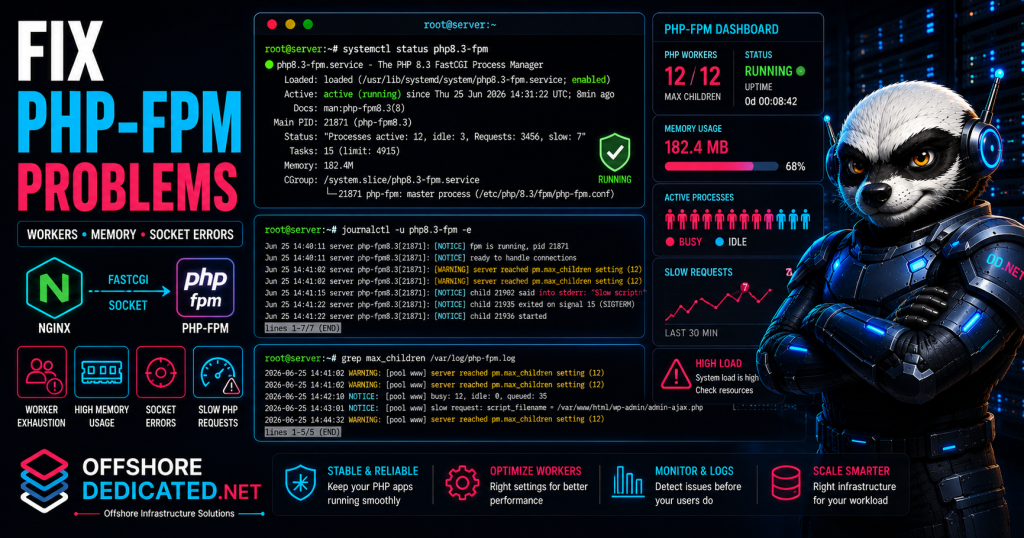
This guide explains how to troubleshoot PHP-FPM in Linux using systemctl, journalctl, Nginx configuration checks, PHP-FPM pool settings, worker limits, memory diagnostics, and slow-request logging.
What Is PHP-FPM?
PHP-FPM stands for PHP FastCGI Process Manager.
It runs PHP worker processes that execute PHP scripts for websites and applications. Web servers such as Nginx send PHP requests to PHP-FPM, and PHP-FPM returns the processed response.
A common request flow looks like this:
Visitor
  ↓
Nginx
  ↓
PHP-FPM
  ↓
PHP application
  ↓
Database or external services
PHP-FPM is commonly used for:
- WordPress
- Laravel
- custom PHP applications
- WooCommerce
- CMS platforms
- control panels
- PHP-based APIs
When PHP-FPM is healthy, PHP requests are processed quickly and returned to the web server.
When PHP-FPM is unhealthy, Nginx may show upstream errors, visitors may see 502 responses, or the website may become very slow.
For Nginx-side troubleshooting, see our guide on how to troubleshoot Nginx 502 Bad Gateway errors in Linux.
Common PHP-FPM Problems
PHP-FPM problems usually fall into several categories.
Common issues include:
- PHP-FPM service is stopped
- PHP-FPM service failed to start
- wrong PHP-FPM socket path
- Nginx points to the wrong PHP version
- socket permissions are incorrect
- PHP-FPM workers are exhausted
- memory usage is too high
- slow PHP scripts block workers
- PHP extensions are missing or broken
- pool configuration contains errors
- application code crashes
- PHP-FPM is killed by the OOM killer
- filesystem is full or read-only
- database delays cause PHP requests to pile up
A PHP-FPM issue may look like a web server problem, but the root cause may be application code, database performance, memory pressure, or worker configuration.
The correct approach is to check the service, logs, socket, pool settings, and server resources in order.
Check PHP-FPM Service Status
Start by finding the PHP-FPM service name.
Run:
systemctl list-units --type=service --all | grep -i fpmCommon service names include:
php8.1-fpm
php8.2-fpm
php8.3-fpm
php-fpm
Check the service status:
sudo systemctl status php8.3-fpm --no-pager -lReplace php8.3-fpm with the actual service name on your server.
A healthy service may show:
Active: active (running)A failed service may show:
Active: failed (Result: exit-code)or:
Main PID: 21344 (code=exited, status=1/FAILURE)If PHP-FPM is stopped, start it:
sudo systemctl start php8.3-fpmIf PHP-FPM is failed, do not just restart repeatedly. First inspect the logs and configuration.
For general systemd service troubleshooting, see how to find why a systemd service failed in Linux.
Check PHP-FPM Logs with journalctl
Use journalctl to inspect PHP-FPM service logs.
Show recent PHP-FPM logs:
sudo journalctl -u php8.3-fpm --since "30 minutes ago"Show the latest PHP-FPM entries:
sudo journalctl -u php8.3-fpm -eShow the last 100 entries:
sudo journalctl -u php8.3-fpm -n 100Follow PHP-FPM logs in real time:
sudo journalctl -u php8.3-fpm -fUseful messages may include:
failed to start
pool www
unable to bind listening socket
address already in use
permission denied
server reached pm.max_children setting
child exited on signal
configuration file test failed
For more journal examples, see our guide on how to use journalctl in Linux.
Some PHP-FPM setups also write logs under /var/log, such as:
/var/log/php8.3-fpm.log
/var/log/php-fpm/error.log
/var/log/php-fpm/www-error.log
Check available log files:
sudo find /var/log -iname "*fpm*" -o -iname "*php*"For log-file reading commands, see how to read Linux logs in /var/log.
Find the PHP-FPM Socket or Port
Nginx communicates with PHP-FPM through either a Unix socket or a TCP port.
A Unix socket may look like:
/run/php/php8.3-fpm.sockA TCP listener may look like:
127.0.0.1:9000Find the PHP-FPM pool configuration.
On Debian or Ubuntu, common pool files include:
/etc/php/8.3/fpm/pool.d/www.confOn RHEL-compatible systems, common locations include:
/etc/php-fpm.d/www.confSearch for the listen directive:
sudo grep -R "^listen" /etc/php/*/fpm/pool.d/ /etc/php-fpm.d/ 2>/dev/nullExample output:
listen = /run/php/php8.3-fpm.sockor:
listen = 127.0.0.1:9000Now check whether PHP-FPM is actually listening.
For sockets:
sudo ss -lxnp | grep phpOr:
ls -lah /run/php/For TCP ports:
sudo ss -lntp | grep ':9000'If the socket or port does not exist, PHP-FPM may not be running, may have failed before creating the socket, or may be configured to listen somewhere else.
Check Nginx and PHP-FPM Connection
Nginx must point to the same socket or port that PHP-FPM is using.
Search Nginx configuration for fastcgi_pass:
sudo grep -R "fastcgi_pass" /etc/nginx/Example:
fastcgi_pass unix:/run/php/php8.3-fpm.sock;Or:
fastcgi_pass 127.0.0.1:9000;Compare this with the PHP-FPM listen value.
If PHP-FPM listens on:
/run/php/php8.3-fpm.sockbut Nginx points to:
/run/php/php8.1-fpm.sockPHP requests will fail.
This often happens after:
- PHP version upgrades
- migration from one server to another
- restoring old Nginx configuration
- installing a new PHP-FPM package
- switching between control-panel templates
- changing application stack versions
After correcting Nginx configuration, test it:
sudo nginx -tThen reload Nginx safely:
sudo systemctl reload nginxor:
sudo nginx -t && sudo systemctl reload nginxCheck PHP-FPM Pool Configuration
PHP-FPM pool configuration controls how PHP worker processes run.
Open or inspect the pool file:
sudo grep -Ev '^[[:space:]]*(;|$)' /etc/php/8.3/fpm/pool.d/www.confImportant directives include:
user
group
listen
listen.owner
listen.group
listen.mode
pm
pm.max_children
pm.start_servers
pm.min_spare_servers
pm.max_spare_servers
pm.max_requests
request_terminate_timeout
slowlog
request_slowlog_timeout
Check whether the pool user matches the application file ownership.
For example:
user = www-data
group = www-data
If your application files are owned by another user, PHP-FPM may not be able to read or write required paths.
Check application directory ownership:
ls -ld /var/www/example.comCheck PHP-FPM configuration syntax where supported:
sudo php-fpm8.3 -tOn some systems, the command may be:
sudo php-fpm -tIf the test fails, correct the configuration before restarting PHP-FPM.
Check PHP-FPM Worker Limits
One of the most common PHP-FPM performance issues is worker exhaustion.
PHP-FPM may log:
server reached pm.max_children settingSearch logs:
sudo journalctl -u php8.3-fpm --since "1 hour ago" |
grep -i "max_children"
Also search PHP-FPM log files:
sudo grep -Ri "max_children" /var/log/php* /var/log/php-fpm* 2>/dev/nullThe pm.max_children setting controls the maximum number of PHP worker processes in a pool.
If all workers are busy, new requests must wait. This can cause:
- slow pages
- upstream timeouts
- Nginx 502 or 504 errors
- high load
- poor WordPress admin performance
- request queues
Check the value:
sudo grep -R "^pm.max_children" /etc/php/*/fpm/pool.d/ /etc/php-fpm.d/ 2>/dev/nullIncreasing pm.max_children can help only if the server has enough memory.
Do not increase it blindly.
Each PHP worker consumes RAM. If you allow too many workers, the server may run out of memory and trigger OOM kills.
Diagnose PHP-FPM Memory Usage
Check memory usage:
free -mShow PHP-FPM processes sorted by memory:
ps aux | grep php-fpm | sort -k4 -nr | head -20A more general memory check:
ps aux --sort=-%mem | head -20Search for OOM kills:
sudo dmesg -T | grep -Ei "out of memory|oom|killed process"Or:
sudo journalctl -k --since "1 hour ago" | grep -Ei "out of memory|oom|killed process"If PHP-FPM was killed by the kernel, you may see something like:
Out of memory: Killed process 29108 (php-fpm)In that case, the problem is not only PHP-FPM. The server ran out of usable memory or hit a memory limit.
For deeper memory diagnostics, see how to diagnose memory pressure in Linux.
Possible fixes include:
- reducing
pm.max_children - enabling or increasing swap
- fixing memory-heavy PHP code
- disabling unnecessary plugins
- optimizing database queries
- moving heavy workloads to a larger VPS or dedicated server
- separating database and web workloads
- using caching properly
The correct fix depends on whether memory pressure is caused by traffic, configuration, application code, or insufficient infrastructure.
Check Slow PHP Requests
Slow PHP requests can occupy workers for too long.
If enough slow requests build up, PHP-FPM may reach its worker limit even if traffic is not extremely high.
PHP-FPM supports slow logs.
Pool settings may include:
slowlog = /var/log/php-fpm/www-slow.log
request_slowlog_timeout = 5s
Or similar paths depending on the distribution.
Search pool configuration:
sudo grep -R "slowlog\|request_slowlog_timeout" \
/etc/php/*/fpm/pool.d/ /etc/php-fpm.d/ 2>/dev/null
If slow logging is enabled, inspect the slow log:
sudo tail -n 100 /var/log/php-fpm/www-slow.logSlow requests may be caused by:
- database queries
- external API calls
- slow disk I/O
- blocked file operations
- inefficient PHP code
- overloaded WordPress plugins
- large admin operations
- long-running cron tasks
If the whole server is slow, see how to investigate a slow Linux server.
Restart or Reload PHP-FPM Safely
Before restarting PHP-FPM, collect status and logs:
sudo systemctl status php8.3-fpm --no-pager -l
sudo journalctl -u php8.3-fpm --since "30 minutes ago"
Test configuration where possible:
sudo php-fpm8.3 -tReload PHP-FPM when possible:
sudo systemctl reload php8.3-fpmIf reload is not enough or the service is failed, restart it:
sudo systemctl restart php8.3-fpmThen verify status:
sudo systemctl status php8.3-fpm --no-pager -lCheck Nginx again:
sudo nginx -t && sudo systemctl reload nginxThen watch logs while testing the website:
sudo journalctl -u php8.3-fpm -fIn another terminal:
sudo tail -F /var/log/nginx/error.logA controlled restart is fine after evidence is collected and configuration is checked. Repeated blind restarts are not troubleshooting.
Practical PHP-FPM Troubleshooting Workflow
Use this sequence when PHP pages are slow, returning errors, or causing Nginx 502 responses.
1. Check PHP-FPM service status
sudo systemctl status php8.3-fpm --no-pager -l2. Check PHP-FPM logs
sudo journalctl -u php8.3-fpm --since "30 minutes ago"3. Check Nginx error logs
sudo tail -n 100 /var/log/nginx/error.log4. Verify the PHP-FPM socket or port
sudo ss -lxnp | grep php
sudo ss -lntp | grep ':9000'
5. Compare Nginx and PHP-FPM configuration
sudo grep -R "fastcgi_pass" /etc/nginx/
sudo grep -R "^listen" /etc/php/*/fpm/pool.d/ /etc/php-fpm.d/ 2>/dev/null
6. Check worker-limit messages
sudo journalctl -u php8.3-fpm --since "1 hour ago" |
grep -i "max_children"
7. Check memory and OOM events
free -m
sudo dmesg -T | grep -Ei "out of memory|oom|killed process"
8. Check slow PHP requests
sudo grep -R "slowlog\|request_slowlog_timeout" \
/etc/php/*/fpm/pool.d/ /etc/php-fpm.d/ 2>/dev/null
9. Test configuration
sudo php-fpm8.3 -t10. Reload or restart safely
sudo systemctl reload php8.3-fpmor:
sudo systemctl restart php8.3-fpmThis workflow checks service health, connection paths, logs, workers, memory, and configuration before applying changes.
Common PHP-FPM Mistakes
Restarting PHP-FPM without checking logs
A restart may temporarily restore the website but hide the real failure pattern.
Increasing pm.max_children blindly
More workers can improve concurrency only if enough memory exists. Too many workers can trigger OOM kills.
Ignoring Nginx socket configuration
Nginx and PHP-FPM must use the same socket or TCP port.
Using unsafe socket permissions
Do not use 0777 as a shortcut. Correct the user, group, and socket mode properly.
Checking only PHP-FPM
PHP-FPM problems may be caused by slow database queries, disk I/O, memory pressure, or application code.
Forgetting PHP version changes
After PHP upgrades, Nginx may still point to an old socket path.
Ignoring slow logs
Slow logs can reveal scripts that hold workers for too long.
When PHP-FPM Problems Need Server Management
A single PHP-FPM error may be simple to fix.
Recurring PHP-FPM instability usually needs deeper server and application investigation.
Common recurring causes include:
- worker exhaustion
- memory pressure
- PHP-FPM OOM kills
- slow WordPress plugins
- heavy database queries
- overloaded VPS resources
- incorrect pool settings
- socket permission problems
- repeated Nginx 502 errors
- high traffic spikes
- missing caching
- poor application isolation
OffshoreDedicated.NET provides expert server management for Linux PHP hosting, VPS, cloud, and dedicated server environments.
For standard PHP websites and CMS-based projects, offshore web hosting can be suitable when full server administration is not required.
For applications that need isolation and root-level control, offshore VPS servers provide dedicated virtual resources.
For flexible deployment and scaling needs, offshore cloud servers provide a more adaptable infrastructure model.
For sustained heavy PHP workloads, database-heavy applications, or high-traffic sites, offshore dedicated servers provide dedicated CPU, memory, storage, and network capacity.
For location-specific infrastructure needs, offshore Bulgaria dedicated servers are available.
For workloads where predictable network capacity matters, offshore bandwidth commit servers can support high-throughput deployments.
The correct solution depends on whether PHP-FPM problems are caused by configuration, traffic, application behavior, memory limits, or infrastructure capacity.
Frequently Asked Questions
What is PHP-FPM used for?
PHP-FPM runs PHP worker processes that execute PHP scripts for web servers such as Nginx. It is commonly used for WordPress, Laravel, CMS platforms, and custom PHP applications.
How do I check PHP-FPM status?
Use:
sudo systemctl status php8.3-fpmReplace php8.3-fpm with the actual service name.
How do I view PHP-FPM logs?
Use:
sudo journalctl -u php8.3-fpm --since "30 minutes ago"Also check PHP-FPM log files under /var/log if configured.
How do I know if PHP-FPM caused an Nginx 502 error?
Check the Nginx error log:
sudo tail -n 100 /var/log/nginx/error.logIf the error mentions a PHP-FPM socket, upstream connection failure, or connection refused message, PHP-FPM is likely involved.
What does server reached pm.max_children setting mean?
It means all available PHP-FPM workers were busy. New PHP requests had to wait, which can cause slow pages or upstream errors.
Should I increase pm.max_children?
Only after checking available memory. Increasing worker count without enough RAM can cause memory exhaustion and OOM kills.
How do I restart PHP-FPM?
Use:
sudo systemctl restart php8.3-fpmTo reload configuration without a full restart, use:
sudo systemctl reload php8.3-fpmWhere is the PHP-FPM pool configuration file?
Common locations include:
/etc/php/8.3/fpm/pool.d/www.conf
/etc/php-fpm.d/www.conf
The exact path depends on your Linux distribution and PHP version.
Final Thoughts
PHP-FPM is a critical part of many Linux web hosting stacks.
When PHP-FPM fails or becomes overloaded, the website may show Nginx 502 errors, slow responses, failed PHP requests, or intermittent downtime.
Start with:
sudo systemctl status php8.3-fpm --no-pager -l
sudo journalctl -u php8.3-fpm --since "30 minutes ago"
sudo tail -n 100 /var/log/nginx/error.log
Then check:
sudo ss -lxnp | grep php
sudo grep -R "fastcgi_pass" /etc/nginx/
sudo grep -R "^pm.max_children" /etc/php/*/fpm/pool.d/ /etc/php-fpm.d/ 2>/dev/null
free -m
sudo dmesg -T | grep -Ei "out of memory|oom|killed process"
Effective PHP-FPM troubleshooting means checking the service, socket, Nginx connection, worker limits, memory usage, slow requests, and logs together.
That approach helps identify the real cause instead of relying on repeated restarts.