
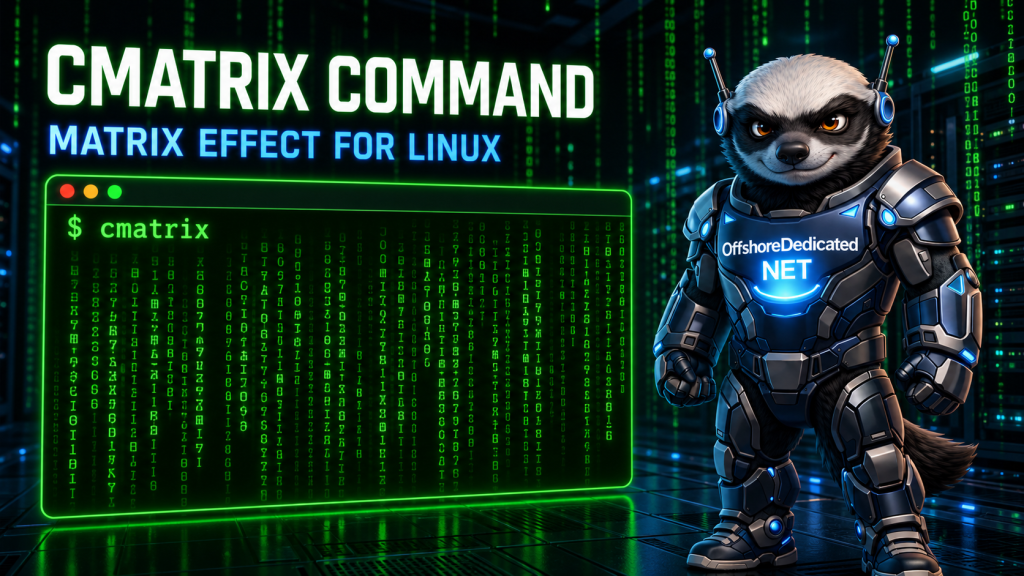
The Linux terminal can monitor servers, configure networks, manage files—and transform itself into a screen filled with cascading digital rain.
The cmatrix command creates a continuous stream of colored characters that descend through the terminal. It resembles the distinctive computer displays associated with The Matrix, but it runs as a lightweight text-based terminal program.
Although cmatrix is mainly for entertainment, installing and customizing it provides a friendly introduction to Linux packages, command options, keyboard controls, terminal colors, and screensaver-style programs.
What Is the cmatrix Command?
cmatrix is a curses-based terminal program that displays vertically scrolling characters.
It does not monitor processes, analyze code, or display real system activity. The symbols are generated for visual effect.
The command can be customized with:
- Different foreground colors
- Faster or slower animation
- Bold characters
- Asynchronous columns
- Alternative scrolling behavior
- Screensaver mode
- Lambda characters
Unlike a video or fixed animation, cmatrix draws the effect according to the current terminal dimensions. Resizing the window changes the available space for the digital rain.
The program is available through several Linux distribution repositories. Current Arch Linux documentation describes it as a scrolling Matrix-like display and documents its supported command-line options and live keyboard controls.
How to Install cmatrix on Linux
The program is not normally included in a minimal Linux installation. Install it using the package manager provided by your distribution.
Install cmatrix on Ubuntu or Debian
Refresh the available package information:
sudo apt updateInstall cmatrix:
sudo apt install cmatrixConfirm that the executable is available:
command -v cmatrixThe command should return a path such as:
/usr/bin/cmatrixInstall cmatrix on Fedora
Fedora provides a cmatrix package in its repositories:
sudo dnf install cmatrixThe package and its associated X11 font are listed by the official Fedora package service.
Install cmatrix on Arch Linux
On Arch Linux, install the package with Pacman:
sudo pacman -S cmatrixThe package is available from Arch Linux’s Extra repository.
What If the Package Is Not Found?
A “package not found” error usually means one of the following:
- Package information has not been updated.
- The required repository is not enabled.
- The distribution does not package
cmatrix. - The operating-system release is no longer supported.
- The command uses the wrong package manager for that distribution.
Check the operating system before following installation instructions:
cat /etc/os-releaseAvoid downloading an unknown binary merely because the package manager cannot find the program. Use a trusted distribution repository or the program’s recognized upstream source.
How to Run cmatrix
Start the standard green digital-rain effect with:
cmatrixThe program takes over the current terminal window and continues running until you stop it.
Press:
qto quit normally.
You can also use:
Ctrl+Cto interrupt the process and return to the shell prompt.
If the terminal display looks incorrect after an unexpected interruption, reset it:
resetA reset is not normally necessary, but it can restore a terminal after a full-screen application exits badly.
Change the cmatrix Color
Use the -C option followed by a supported color name.
For a blue display:
cmatrix -C blueFor cyan:
cmatrix -C cyanFor red:
cmatrix -C redDocumented colors include:
greenredbluewhiteyellowcyanmagentablack
Green is the default:
cmatrix -C greenThe final appearance depends on the terminal emulator, color theme, brightness, and background transparency.
Change the Animation Speed
The -u option controls the screen-update delay.
The accepted values range from 0 to 9:
cmatrix -u 2A lower delay generally creates a faster animation, while a higher delay slows the display.
Try a slower version:
cmatrix -u 8Or a faster one:
cmatrix -u 1The default delay is 4.
Very fast animation may use noticeably more CPU, particularly in a large terminal window or remote graphical terminal.
Use Bold Characters
Random bold characters can make the leading symbols stand out:
cmatrix -bTo make all characters bold, use an uppercase B:
cmatrix -BTo disable bold characters:
cmatrix -nLinux options are case-sensitive. In this program, -b and -B deliberately produce different effects.
Enable Asynchronous Scrolling
The -a option enables asynchronous scrolling:
cmatrix -aThis gives individual columns more independent movement and can make the animation appear less uniform.
Combine it with a color:
cmatrix -a -C cyanOr add bold characters and a custom speed:
cmatrix -a -b -u 3 -C greenCombining options is a useful way to create a preferred visual style without changing any configuration file.
Use Screensaver Mode
Run cmatrix in screensaver mode with:
cmatrix -sIn this mode, the program exits when it detects a keypress.
You can combine screensaver mode with visual options:
cmatrix -s -b -C cyanThis is a terminal screensaver, not a desktop-security feature. It does not necessarily lock the user account, conceal existing terminal history securely, or require a password when it exits.
Do not use cmatrix -s as a replacement for a real screen lock.
Try Lambda Mode
Lambda mode replaces the normal character selection with the Greek lambda symbol:
cmatrix -mIt can also be combined with colors and speed settings:
cmatrix -m -C magenta -u 5This option provides a noticeably different effect while using the same scrolling engine.
Use Old-Style Scrolling
The -o option selects the program’s older scrolling style:
cmatrix -oWhether it looks better is a matter of preference. It is another small example of how command options can change a program’s behavior without requiring a graphical settings window.
Change cmatrix While It Is Running
Several settings can be changed with keyboard shortcuts while cmatrix is active.
Useful keys include:
a— toggle asynchronous scrollingb— enable random bold charactersB— make all characters boldn— disable bold characters0through9— change the update speedq— quit
Color shortcuts are also available:
!— red@— green#— yellow$— blue%— magenta^— cyan&— white)— black
Some keyboard layouts require holding Shift to type these symbols.
These live controls are unavailable when the program is running with the -s screensaver option, because the first keypress exits that mode.
Display Help and Version Information
Show the available options:
cmatrix -hDisplay the installed version:
cmatrix -VOpen the full local manual page:
man cmatrixThe locally installed manual is important because package versions and available options can differ between distributions.
Can You Run cmatrix over SSH?
Yes. If cmatrix is installed on a remote Linux machine, it can run inside an SSH session:
ssh user@server-address
cmatrix
The server generates the changing terminal output and sends it through the SSH connection.
This can create substantial terminal traffic compared with a normal shell prompt. It may also consume noticeable CPU, especially at high speeds. The manual page explicitly warns that cmatrix can be CPU-intensive.
For that reason, use it carefully on shared or production infrastructure. A local Linux computer, laboratory system, or personal Linux VPS server is a more suitable place to experiment.
Avoid leaving it running inside an unattended SSH session.
Does cmatrix Show Real Server Data?
No. The falling characters do not represent:
- Application logs
- Network packets
- Source code
- Encryption activity
- Login attempts
- Running processes
- Malware detection
- System performance
It is purely a visual effect.
To monitor real activity, use appropriate tools such as journalctl, top, htop, ss, or dmesg. A convincing terminal animation should never be mistaken for an operational dashboard.
Is cmatrix Safe to Use?
Running a distribution-packaged version of cmatrix only produces terminal output. It should not modify system configuration or user files.
However, sensible package-management rules still apply:
- Install software from trusted repositories.
- Avoid novelty packages on minimal production servers.
- Remove programs that are no longer needed.
- Monitor resource usage if an animation is left running.
- Do not mistake a visual screensaver for a security lock.
The primary practical concern is unnecessary CPU and terminal activity rather than file damage.
How to Remove cmatrix
On Ubuntu or Debian:
sudo apt remove cmatrixOn Fedora:
sudo dnf remove cmatrixOn Arch Linux:
sudo pacman -R cmatrixRemoving cmatrix does not affect the terminal or other Linux commands.
cmatrix vs the sl Command
Both programs make the Linux terminal more entertaining, but their behavior is different.
The sl command sends a steam locomotive across the screen and then exits.
cmatrix creates a continuous animation that remains active until the user stops it.
Use sl for a quick surprise and cmatrix when you want a customizable full-screen terminal effect.
Useful cmatrix Examples
Run the standard effect:
cmatrixUse blue characters:
cmatrix -C blueCreate a slower cyan display:
cmatrix -C cyan -u 8Use fast, bold, asynchronous green characters:
cmatrix -a -b -u 1 -C greenStart screensaver mode:
cmatrix -sRun lambda mode in magenta:
cmatrix -m -C magentaFinal Thoughts
The cmatrix command is not an administration or monitoring tool. It is a small terminal program created for visual enjoyment.
Nevertheless, it offers new Linux users an approachable way to practice installing packages, using command options, combining flags, reading manual pages, and controlling a full-screen terminal application.
Install it from a trusted repository, run:
cmatrixand press q when you are ready to return from the digital rain.