
The Linux terminal is normally associated with server administration, programming, and troubleshooting. However, not every Linux command needs to perform a serious task.
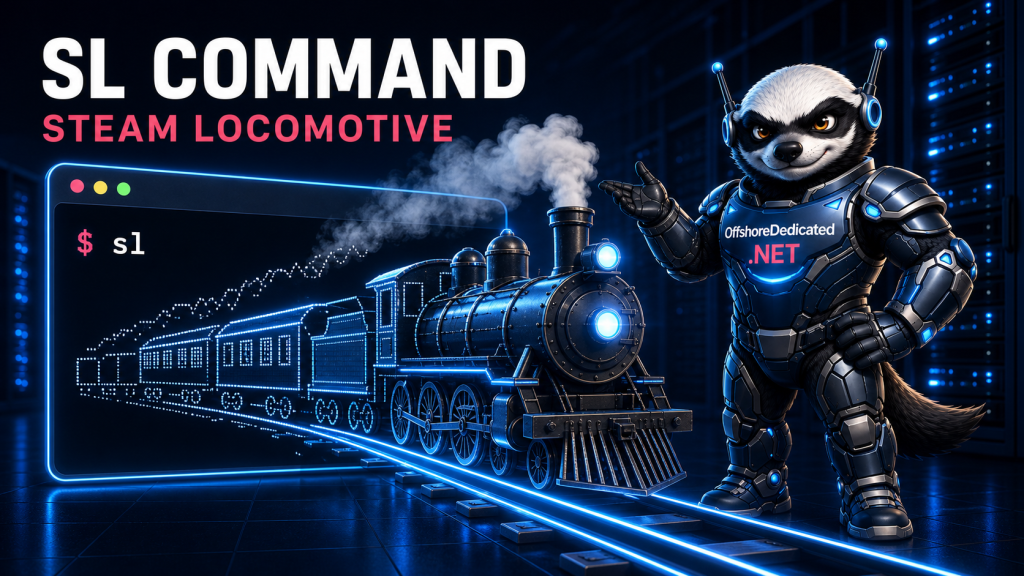
The sl command sends an animated steam locomotive across your terminal. It was created as a humorous response to people accidentally typing sl instead of ls.
It will not improve server performance or solve a technical problem, but it provides a memorable introduction to Linux terminal programs—and may encourage you to check your typing before pressing Enter.
What Is the sl Command in Linux?
sl stands for Steam Locomotive. When you run it, a moving train crosses the terminal window from right to left.
The program is a joke based on a common typing mistake. Linux users regularly run the following command to list files and directories:
lsIf the two letters are entered in the wrong order, the result is:
slNormally, an unrecognized command would only produce a “command not found” message. After installing sl, that small typing mistake produces a complete animated locomotive instead.
The upstream project describes sl as a cure for the bad habit of mistyping ls. Debian similarly categorizes it as a text-based amusement program designed to correct users who enter sl accidentally.
You can review the original project and source code in the sl GitHub repository.
How to Install the sl Command
The sl program is small, but it is not installed by default on most Linux distributions.
Use the package manager provided by your distribution to install it.
Install sl on Ubuntu or Debian
Update the available package information:
sudo apt updateInstall the sl package:
sudo apt install slThe package is available through the official Debian package repositories.
On some Debian-based systems, the executable may be installed inside /usr/games. If the shell cannot find it after installation, try:
/usr/games/slYou can also check whether that directory is included in your current PATH:
echo "$PATH"Install sl on Fedora
On Fedora, install the package with DNF:
sudo dnf install slThe command remains available in current Fedora package releases.
Install sl on AlmaLinux, Rocky Linux, or RHEL
The package may be available through Extra Packages for Enterprise Linux, commonly known as EPEL.
Enable the EPEL repository:
sudo dnf install epel-releaseThen install sl:
sudo dnf install slRepository availability can vary according to the operating-system version and configured software sources. If the package is not found, inspect the enabled repositories before attempting to download an unofficial package.
How to Run the Steam Locomotive
After installation, enter:
slA steam locomotive should travel across the terminal. When the animation finishes, the shell prompt returns automatically.
The animation responds to the size of the terminal window. A wider terminal gives the train more room to travel, while a very small terminal may crop part of it.
If nothing happens, confirm that the executable is installed:
command -v slYou can also ask the package manager whether the package is present.
On Debian or Ubuntu:
dpkg -s slOn Fedora and other RPM-based systems:
rpm -q slUseful sl Command Options
The train has several amusing variations. These options are documented by the project’s official manual page.
Show Passengers Calling for Help
Run the train with the -a option:
sl -aThe letter represents an accident. Small figures appear in the animation and call for help as the locomotive crosses the screen.
Display a Smaller Locomotive
Use -l to display the little version:
sl -lThis variation works well when the terminal window does not have enough space for the standard train.
Make the Train Fly
The -F option sends the locomotive flying through the terminal:
sl -FThe uppercase letter matters. Linux command-line options are case-sensitive, so -F and -f are not necessarily interchangeable.
Display the C51 Locomotive
By default, sl displays a D51-style locomotive. The -c option displays the C51 version instead:
sl -cThe differences are primarily visual, but they offer another reason to run the animation more than once.
Combine Multiple Options
Options can be combined:
sl -alThis displays the smaller locomotive with the accident animation.
You can also try:
sl -aFThis combines the accident effect with the flying locomotive.
Use the locally installed manual page to see the options supported by your package version:
man slIs sl a Real Linux Command?
sl is a real executable, but it is not part of the essential Linux command set.
Commands such as ls, cp, mv, ss, and systemctl help users inspect or control the system. The sl program exists primarily for entertainment.
That does not make it meaningless. Small terminal programs can help new Linux users become comfortable with several useful ideas:
- Installing software with a package manager
- Running an executable by name
- Passing options to a command
- Reading a manual page
- Checking whether a command exists
- Understanding the shell’s
PATH - Recognizing that uppercase and lowercase options differ
A user who installs sl for the joke may learn several genuine command-line skills in the process.
Can You Run sl on a Remote Linux Server?
Yes. If you connect to a Linux server through SSH and the package is installed, the animation can run inside that remote terminal session.
For example, you could test it on a personal lab machine or an offshore Linux VPS.
However, novelty packages should not be installed unnecessarily on production infrastructure. Every additional package increases the software inventory that administrators must track and maintain.
For a production server, consider whether the program has a genuine operational purpose before installing it. A disposable virtual machine, local Linux computer, or non-production VPS is a better place to experiment.
How to Remove the sl Command
The joke may eventually wear thin—or repeatedly typing sl instead of ls may become inconvenient.
On Ubuntu or Debian, remove it with:
sudo apt remove slOn Fedora, AlmaLinux, Rocky Linux, or RHEL, use:
sudo dnf remove slRemoving the package does not affect the real ls command or any of your files. It only removes the locomotive program installed separately.
Frequently Asked Questions
Does sl list files?
No. The command does not perform the normal work of ls. It displays an animated train and then exits.
Use the following command to list files:
lsIs the sl command dangerous?
Running the packaged version of sl only displays an animation in the terminal. It does not intentionally modify files or reconfigure the system.
As with any software, install it from a trusted distribution repository rather than copying an unknown executable or installation script from a random website.
Why does Linux have joke commands?
Linux and Unix communities have a long history of small programs, jokes, games, and demonstrations. They provide a lighter way to explore terminals while showing how much can be accomplished with simple text-based software.
Can sl damage the terminal?
No permanent damage should occur. The program uses terminal-control capabilities to draw the animation and restores the prompt when it finishes.
If a terminal display ever looks incorrect after running an interactive program, the following command can reset it:
resetThat command should rarely be necessary with a properly packaged version of sl.
Final Thoughts
The sl command began with a simple joke: type sl instead of ls, and receive a steam locomotive instead of a directory listing.
Behind the joke is a friendly introduction to package installation, command options, manual pages, executable paths, and terminal animation. It is an excellent command to show someone who believes Linux terminals are only for serious or intimidating work.
Install it on a local system or test server, run:
slThen watch your typing—or enjoy the train again.