

Restarting a Linux service is easy. Restarting it safely on a production server requires more thought.
A service restart can interrupt active requests, disconnect users, terminate background work, expose a configuration error, or prevent remote access. Even when systemctl reports success, the application may still be unable to serve real traffic.
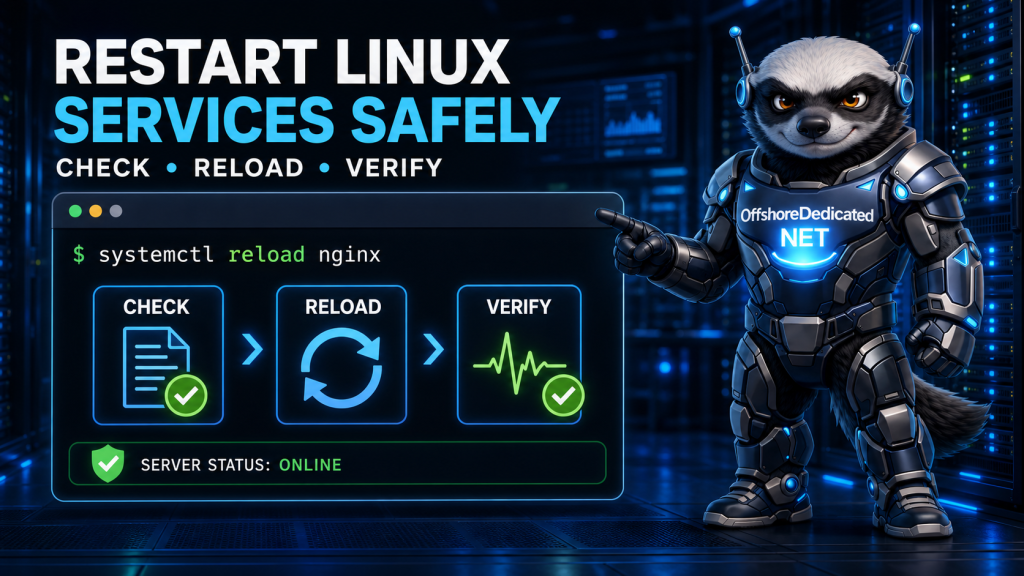
The safer process is straightforward: understand the change, test the configuration, prefer a graceful reload when supported, verify the result, and keep a rollback path ready.
Why Production Service Restarts Need Planning
On a personal computer, restarting an application is normally a minor inconvenience. On a production server, the same action may affect websites, databases, mail delivery, APIs, scheduled jobs, and customer sessions.
A restart may:
- Close existing network connections
- Interrupt requests being processed
- Terminate worker processes
- Clear in-memory caches
- Delay queued jobs
- Trigger dependent services
- Expose a syntax or permission error
- Leave the service unable to start
- Cause a brief monitoring or load-balancer failure
The risk depends on the service. Restarting a small internal daemon is different from restarting SSH on a remote server or a database handling active transactions.
The correct question is not simply, “What command restarts the service?” It is, “What will happen to the workload when this process is replaced?”
Identify the Correct Service
Before taking action, confirm the exact systemd unit name.
List running services:
systemctl list-units --type=service --state=runningSearch for a particular name:
systemctl list-units --type=service | grep -i nginxInspect the service:
sudo systemctl status nginxThe unit name may vary between distributions. Common examples include:
apache2on Ubuntu and Debianhttpdon Fedora, AlmaLinux, Rocky Linux, and RHELsshon some Debian-based systemssshdon many RPM-based systemsmysqlormysqldmariadbphp8.3-fpm,php-fpm, or another version-specific name
Do not guess the unit name during a production change.
Check the Current State First
Record the service’s condition before changing it:
sudo systemctl status nginx --no-pager --fullCheck whether systemd considers it active:
systemctl is-active nginxReview recent logs:
sudo journalctl -u nginx --since "15 minutes ago"This baseline matters. If warnings already exist before the change, they should not automatically be blamed on the restart.
For a web service, also test the application before maintenance:
curl -I https://example.com/Record the status code, response time, and any important application behavior. After the restart, repeat the same check.
Understand Reload vs Restart
A reload and a restart are not the same operation.
What Does Reload Do?
A reload asks a running service to reread its configuration without completely stopping.
sudo systemctl reload nginxA well-designed reload may start new workers with the new configuration while allowing old workers to finish active requests.
The official NGINX control documentation explains that a successful reload starts new workers and gracefully retires the old ones after their clients have been served.
Reload is usually preferable when:
- Only configuration changed
- The service supports reloading
- Existing connections should remain active
- No binary or library replacement requires a new process
Not every service implements reload. If unsupported, systemd will report an error rather than silently performing a restart.
What Does Restart Do?
A restart stops and starts the service:
sudo systemctl restart nginxThis replaces the running processes and can interrupt traffic.
A restart may be necessary when:
- The service does not support reload
- An update replaced the executable or libraries
- Internal state must be cleared
- A reload does not apply the required setting
- The service is unhealthy and needs complete reinitialization
What Does reload-or-restart Do?
Systemd can reload a service when supported and restart it otherwise:
sudo systemctl reload-or-restart nginxThis is convenient for automation, but it may hide an important operational difference. If zero interruption is expected, determine whether the unit really supports reload instead of assuming this command will always be graceful.
What Does try-restart Do?
The following command restarts the service only if it is already running:
sudo systemctl try-restart nginxIt does not normally start an inactive service. This can be useful when an automation task must avoid unexpectedly enabling a service that was deliberately stopped.
daemon-reload Does Not Restart Applications
This command is frequently misunderstood:
sudo systemctl daemon-reloadIt tells systemd to reread unit files and its manager configuration.
Use it after changing files such as:
/etc/systemd/system/example.serviceIt does not make NGINX reread nginx.conf, reload PHP-FPM settings, or restart an application automatically.
After daemon-reload, the affected service may still require a reload or restart:
sudo systemctl daemon-reload
sudo systemctl restart example.service
Test the Configuration Before Applying It
Configuration validation is one of the most effective ways to prevent a failed restart.
Test NGINX Configuration
Run:
sudo nginx -tNGINX checks the configuration syntax and attempts to open referenced files. Its command-line documentation describes -t as a configuration test.
Proceed only after the test succeeds.
Test Apache Configuration
On many systems:
sudo apachectl configtestAlternatively:
sudo apachectl -tThe expected result is:
Syntax OKThe official Apache control documentation confirms that configtest parses the configuration and reports errors before a restart.
Test OpenSSH Configuration
Before reloading or restarting SSH:
sudo sshd -tNo output usually indicates that the syntax test succeeded.
Keep the current SSH session open and create a second connection after applying the change. Never close the working session until the new login has been verified.
Check Whether Other Services Have a Test Command
Many applications provide their own validation mode. Consult the installed manual and official documentation:
man application-nameDo not assume that a successful YAML, JSON, or general syntax check proves that referenced certificates, sockets, users, directories, and permissions are valid. Application-specific validation is more valuable.
Back Up the Configuration
Before editing a critical configuration, make a dated copy:
sudo cp /etc/nginx/nginx.conf \
/etc/nginx/nginx.conf.before-change
For a directory containing several related files, use a version-control system, configuration-management platform, snapshot, or appropriate archive process.
A useful backup should answer two questions:
- Which exact files changed?
- How can the previous working configuration be restored quickly?
Do not overwrite the only previous copy every time a change is made.
Check Dependencies and Active Work
A service rarely operates alone.
A web application may depend on:
- NGINX or Apache
- PHP-FPM
- A database
- Redis
- A queue worker
- A local DNS resolver
- Mounted storage
- A secrets service
- External APIs
Inspect a unit’s relationships:
systemctl list-dependencies nginxThis does not reveal every application-level dependency, but it provides useful systemd context.
Before restarting a database, queue processor, or mail server, check for:
- Active transactions
- Long-running jobs
- Replication state
- Queue depth
- Open connections
- Backup activity
- Maintenance scripts
- Traffic peaks
Stopping the process at the wrong time may create more than a brief outage.
Prefer a Graceful Application-Specific Operation
When available, use the application’s documented graceful behavior.
For NGINX:
sudo nginx -t &&
sudo systemctl reload nginx
The second command runs only if the configuration test succeeds.
For Apache:
sudo apachectl configtest &&
sudo systemctl reload apache2
On an RPM-based distribution, the unit may be httpd:
sudo apachectl configtest &&
sudo systemctl reload httpd
Do not assume every service’s systemd reload action has identical behavior. Review the unit file and application documentation when uninterrupted connections matter.
Inspect a unit definition with:
systemctl cat nginxUse Load Balancers for Multi-Server Services
If several servers provide the same application, restart them one at a time.
A safer rolling sequence is:
- Remove one server from load-balancer rotation.
- Wait for active connections to drain.
- Test its new configuration.
- Reload or restart the service.
- Verify local application health.
- Return the server to rotation.
- Confirm it receives healthy traffic.
- Repeat on the next server.
Do not restart every node simultaneously unless the architecture and maintenance plan specifically require it.
A load balancer reduces customer impact only when health checks, draining, and capacity are configured correctly.
Perform the Restart
When a full restart is necessary:
sudo systemctl restart service-nameFor example:
sudo systemctl restart php8.3-fpmSystemd returning control without an error is encouraging, but it is not the end of the procedure.
Immediately check:
sudo systemctl status php8.3-fpm --no-pager --fullThen confirm the active state:
systemctl is-active php8.3-fpmDo not use stop followed later by start when a direct restart is appropriate. Separate commands create a longer inactive window and increase the chance that the second command is forgotten or fails unnoticed.
Verify the Service Properly
A process can be running while the application is broken.
Use several verification layers.
Verify the Unit State
systemctl is-active nginx
systemctl is-failed nginx
Review New Logs
sudo journalctl -u nginx --since "5 minutes ago"Or follow new messages:
sudo journalctl -fu nginxLook for repeated restarts, permission failures, missing files, address conflicts, and dependency errors.
Confirm the Listening Port
sudo ss -lntpFilter for a known port:
sudo ss -lntp | grep ':443'A listening socket confirms that a process opened the port. It does not prove that the application returns correct content.
Test the Local Service
For an HTTP service:
curl -I http://127.0.0.1/If virtual-host routing requires a hostname:
curl -I -H 'Host: example.com' http://127.0.0.1/Test from Outside the Server
Finally, test through the same path used by customers:
curl -I https://example.com/This includes external DNS, TLS, the firewall, load balancer, reverse proxy, and application path.
Check an important application function as well. A successful homepage does not prove that logins, database queries, uploads, or background jobs work.
Roll Back When Verification Fails
If the service starts but application checks fail:
- Stop making additional unrelated changes.
- Save the error output and logs.
- Restore the last known working configuration.
- Test that restored configuration.
- Reload or restart the service.
- Repeat the health checks.
- Investigate the failed change separately.
For example:
sudo cp /etc/nginx/nginx.conf.before-change \
/etc/nginx/nginx.conf
sudo nginx -t &&
sudo systemctl reload nginx
Rollback is not failure. It is a normal production-safety mechanism.
Common Restart Mistakes
Avoid these habits:
- Restarting before testing the configuration
- Using restart when reload would be sufficient
- Assuming “active” means the application is healthy
- Restarting every cluster node at once
- Editing several unrelated settings in one change
- Ignoring existing warnings recorded before maintenance
- Restarting SSH without console access or a second session
- Confusing
daemon-reloadwith application reload - Using
kill -9as a normal service-control method - Failing to preserve the previous working configuration
- Performing unnecessary maintenance during peak traffic
Forceful termination should be a last resort because it prevents the application from performing normal cleanup.
Might want to check out: Modern SSH Hardening for Public Linux Servers
Production Restart Checklist
Before the change:
- Identify the correct service and unit name.
- Understand why the operation is required.
- Record current service and application health.
- Back up the configuration.
- Confirm recovery or console access.
- Check dependencies and active work.
- Notify affected users or teams when appropriate.
- Test the new configuration.
During the change:
- Prefer reload when it applies the change safely.
- Restart only when necessary.
- Change one server at a time in a redundant environment.
- Watch service logs.
After the change:
- Check
systemctl status. - Confirm the unit is active.
- Review new logs.
- Confirm required ports are listening.
- Test the application locally.
- Test it through the public path.
- Verify important application functions.
- Confirm monitoring has returned to normal.
- Roll back promptly if validation fails.
Customers who need ongoing patching, monitoring, troubleshooting, and controlled production maintenance can also consider professional Linux server management.
Final Thoughts
A safe production restart is a process, not a single command.
Begin by checking the service and recording its current health. Validate configuration changes before applying them. Use a graceful reload when the application supports it, and reserve full restarts for changes that genuinely require process replacement.
Afterward, verify the unit, logs, ports, and real application behavior. Keep the previous configuration available so that rollback is quick and predictable.
The command may take one second. The preparation and verification are what make it safe.