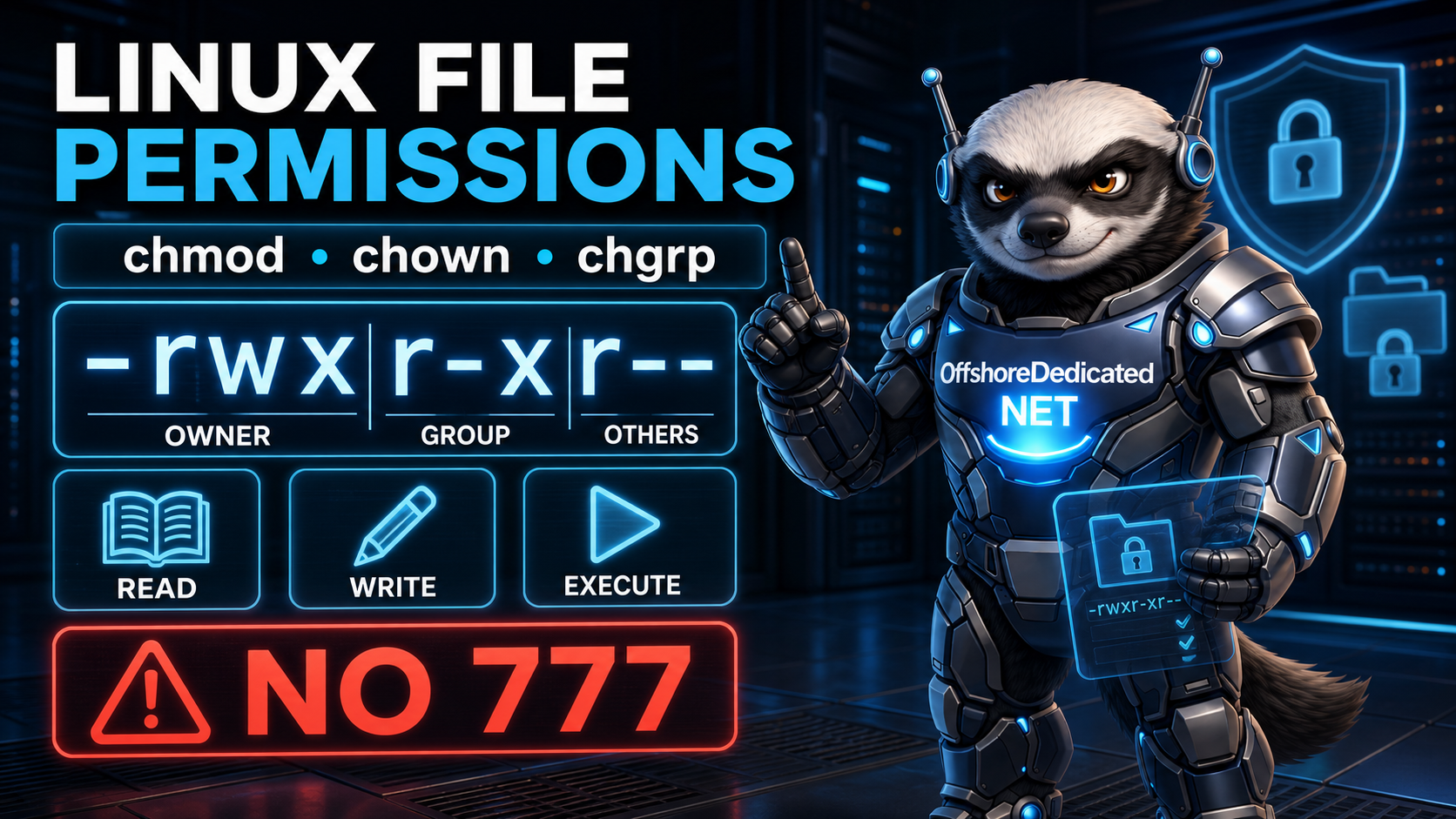

Linux file permissions determine who can read, modify, or execute files and directories. They are a fundamental part of server security, yet they regularly cause website errors, failed deployments, and accidental data exposure.
When an application reports “Permission denied,” setting everything to 777 may appear to solve the problem. In reality, it often hides incorrect ownership while giving every local user unnecessary access.
This guide explains how to read Linux permissions and use chmod, chown, and chgrp safely.
How Linux File Permissions Work
Every normal Linux file or directory has:
- An owning user
- An owning group
- Permissions for the owner
- Permissions for the group
- Permissions for everyone else
Display this information with:
ls -lExample output:
-rw-r----- 1 deploy webteam 2840 Sep 6 10:30 config.php
drwxr-x--- 4 deploy webteam 4096 Sep 6 10:31 public
The first character identifies the object type:
-means a regular file.dmeans a directory.lmeans a symbolic link.
The following nine characters are divided into three groups:
rw- r-- ---They represent permissions for:
owner  group  others
rw-    r--    ---
In the example, the owner can read and write the file, members of the owning group can read it, and everyone else has no access through these basic mode bits.
Administrators working in a self-managed VPS environment should understand these rules before changing website or application ownership.
Understanding Read, Write and Execute
Linux represents the three standard permissions with r, w, and x.
Read Permission
For a regular file, read permission allows someone to view its contents:
rFor a directory, read permission allows listing the names it contains, subject to other permission requirements.
Write Permission
For a regular file, write permission allows modification of its contents.
For a directory, write permission controls whether entries can be created, renamed, or removed. Directory behavior also depends on execute permission.
A user may sometimes delete a read-only file if that user has sufficient write and execute access to its parent directory. Deletion changes the directory entry rather than writing to the file’s contents.
Execute Permission
For a regular file, execute permission allows the system to run it as a program or script, assuming it has a valid format and any required interpreter.
For a directory, execute means search or traversal permission. It allows access to items inside the directory when their names are known.
A directory with read permission but no execute permission may reveal filenames while preventing normal access to those files.
What chmod Does
The chmod command changes access permissions. Its name means “change mode.”
You can use either symbolic modes or numeric modes.
The official GNU chmod documentation defines its general form as:
chmod [option]... mode file...Only the file owner or an appropriately privileged process can normally change a file’s mode.
Using Symbolic Permissions
Symbolic notation describes who should receive which change.
The user classes are:
u— the owning userg— the owning groupo— other usersa— all three classes
The operations are:
+— add permission-— remove permission=— set an exact permission
Give the owner execute permission:
chmod u+x deploy.shRemove write permission from others:
chmod o-w settings.confGive the owner read and write access while giving the group read access:
chmod u=rw,g=r,o= report.txtAllow the owner and group to write to a file:
chmod ug+w shared-notes.txtSymbolic modes are readable and useful when you want to alter one permission without replacing all the others. The GNU guide to symbolic permission modes documents their complete structure.
Understanding Numeric Permissions
Numeric modes represent permissions using octal values:
- Read =
4 - Write =
2 - Execute =
1
Add the values needed for each user class:
| Value | Permission |
|---|---|
| 0 | No permissions |
| 1 | Execute |
| 2 | Write |
| 3 | Write and execute |
| 4 | Read |
| 5 | Read and execute |
| 6 | Read and write |
| 7 | Read, write and execute |
A three-digit mode represents:
owner group othersFor example:
chmod 640 config.phpThis means:
- Owner:
6= read and write - Group:
4= read - Others:
0= no access
Another common mode is:
chmod 755 publicThis gives the owner read, write, and execute permissions. The group and others receive read and execute permissions.
Numeric modes set the requested permission groups directly. GNU’s numeric mode documentation explains how the octal bits correspond to owner, group, others, and special permissions.
Common File and Directory Modes
The correct mode depends on what the file does and which processes need access. Common starting points include:
Regular Website Files
chmod 644 index.htmlThe owner can modify the file, while the group and others can read it.
Website Directories
chmod 755 public_htmlThe owner can modify the directory. Other users can traverse and list it, subject to permissions elsewhere in the path.
Private Configuration Files
chmod 600 application.envOnly the owner can read or modify the file.
Private SSH Directory and Keys
chmod 700 ~/.ssh
chmod 600 ~/.ssh/authorized_keys
chmod 600 ~/.ssh/id_ed25519
chmod 644 ~/.ssh/id_ed25519.pub
The private key should not be readable by other users. For the complete authentication workflow, see our modern SSH key guide.
These examples are common patterns, not universal rules. Web-server users, deployment systems, shared groups, containers, access-control lists, and hosting panels may require different arrangements.
Why chmod 777 Is Dangerous
This command grants read, write, and execute permission to everyone:
chmod 777 filenameApplying it recursively is even more dangerous:
chmod -R 777 /path/to/websitePotential consequences include:
- Other local accounts modifying application files
- Uploaded files becoming executable
- Configuration or data exposure
- Easier alteration of scripts after another compromise
- Files and directories receiving inappropriate identical modes
- The real ownership problem remaining unfixed
On a multi-user server, overly broad write access can cross account boundaries. Even on a single-purpose server, unnecessary permissions increase the impact of a compromised application.
Use the minimum access required. If an application cannot write to a directory, identify the user running that application and correct the specific directory’s owner, group, or mode.
What chown Does
The chown command changes a file’s owner and, optionally, its group.
Change only the owner:
sudo chown deploy index.htmlChange the owner and group:
sudo chown deploy:webteam index.htmlChange ownership recursively:
sudo chown -R deploy:webteam /var/www/exampleBefore using -R, verify the target carefully:
realpath /var/www/example
ls -ld /var/www/example
A recursive ownership change aimed at the wrong directory can damage an operating system or make applications stop working.
The GNU chown manual explains that the standard owner-and-group format uses a colon:
owner:groupAvoid older scripts that use a period between the owner and group. The colon form is clearer and more portable.
A full-control dedicated server provides extensive administrative freedom, but that also makes careful ownership changes especially important.
What chgrp Does
The chgrp command changes only the owning group:
sudo chgrp webteam shared-directoryApply a group recursively when appropriate:
sudo chgrp -R webteam /srv/shared-projectThe equivalent chown form is:
sudo chown :webteam /srv/shared-projectGroups are useful when multiple trusted accounts need controlled access without making files writable by everyone.
Check a user’s group membership:
id deployList the groups of the current user:
groupsIf a user has just been added to a group, that user may need to start a new login session before the membership becomes active.
A Safer Shared Directory
Suppose multiple deployment accounts belong to the webteam group.
Create the directory:
sudo mkdir -p /srv/web-project
sudo chown deploy:webteam /srv/web-project
sudo chmod 2775 /srv/web-project
The leading 2 enables set-group-ID on the directory. On typical Linux filesystems, new files and subdirectories created inside inherit the directory’s group.
Check the result:
ls -ld /srv/web-projectIt may appear as:
drwxrwsr-x 2 deploy webteam 4096 Sep 6 12:00 /srv/web-projectThe s in the group execute position indicates the set-group-ID bit.
The users’ umask values still influence the permissions assigned to newly created files. Set-group-ID preserves the shared group; it does not automatically guarantee group write access in every case.
Files and Directories Need Different Modes
A common mistake is assigning one mode recursively to an entire website tree.
This makes every regular file executable:
chmod -R 755 /var/www/exampleIf the intended policy is 755 for directories and 644 for regular files, use find:
find /var/www/example -type d -exec chmod 755 {} +
find /var/www/example -type f -exec chmod 644 {} +
Inspect the target and test on a small directory before making a large production change.
Some files need stricter modes. Environment files, private keys, backup credentials, and configuration files containing secrets should not automatically receive world-readable permission.
Check Every Directory in a Path
A file can have apparently correct permissions while remaining inaccessible because a parent directory blocks traversal.
Inspect every part of a path with:
namei -l /var/www/example/public/index.phpWhere namei is unavailable, inspect the relevant directories individually:
ls -ld /var /var/www /var/www/example /var/www/example/publicAlso identify the user running the affected service:
ps -eo user,group,comm | grep -E 'nginx|apache|httpd|php-fpm'Do not assume the web server runs as www-data; distributions and control panels use different account names.
Our broader Linux command-line guide covers additional commands useful for inspecting files, processes, storage, and networks.
Permissions Are Not the Only Access Layer
Correct mode bits do not guarantee access. Linux servers may also enforce:
- Access Control Lists
- SELinux policies
- AppArmor profiles
- Read-only filesystem mounts
- Container restrictions
- Network-filesystem permissions
- Application-specific controls
Display any extended ACL entries with:
getfacl /path/to/fileOn an SELinux system, inspect the security context:
ls -lZ /path/to/fileA file can show 644 and still be blocked by SELinux because its context is incorrect. Avoid disabling security systems merely to remove an error message; diagnose the applicable layer.
If ownership, web-server identities, ACLs, or mandatory access controls become difficult to untangle, professional server management can help correct access without exposing the whole application.
Diagnose Before Changing Anything
When a service reports “Permission denied,” use this sequence:
- Identify the exact file or directory.
- Identify the user and group running the process.
- Inspect ownership and mode with
ls -l. - Inspect every parent directory.
- Check ACLs and SELinux or AppArmor where applicable.
- Determine the minimum access actually required.
- Change only the necessary owner, group, or permission.
- Test the application.
- Review the result and record the change.
Useful commands include:
stat /path/to/file
namei -l /path/to/file
id service-user
getfacl /path/to/file
Avoid beginning with a recursive command. Start with observation.
Final Thoughts
Linux permissions are built around three questions:
- Who owns the file?
- Which group owns it?
- What may the owner, group, and everyone else do?
chmod changes permission bits, chown changes ownership, and chgrp changes group ownership. These tools are straightforward once the owner-group-others model and the meaning of rwx are understood.
The safest approach is not to grant more access until an error disappears. Identify the process that needs access, give it the minimum required permission, and keep sensitive files private.
In most real situations, correct ownership and carefully selected modes such as 600, 640, 644, 750, or 755 are better answers than 777.