
SSH keys provide a secure and convenient way to access Linux servers without sending a reusable account password during every login. They are widely used by server administrators, developers, automation systems, and hosting control platforms.
Creating a key is easy. Choosing the correct key type, protecting the private key, and deploying it without locking yourself out require a little more care.
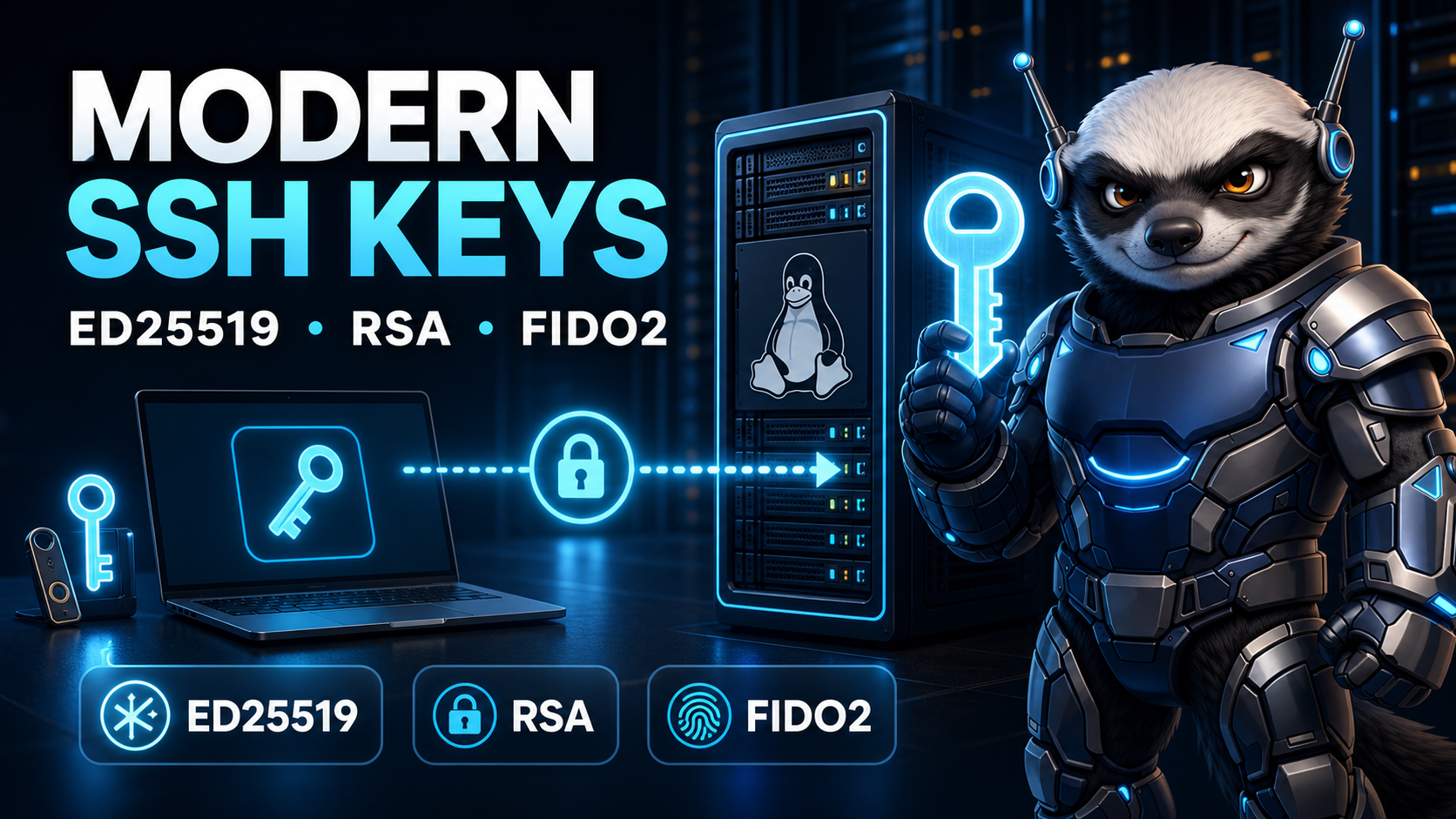
This guide explains how modern SSH keys work, the differences between Ed25519, RSA and hardware-backed FIDO2 keys, and how to install a key safely.
How SSH Key Authentication Works
An SSH key pair contains two related parts:
- A private key that remains on your computer
- A public key installed on the server
The public key does not grant access by itself. During login, the server challenges the SSH client to prove that it possesses the corresponding private key. The client signs the authentication data locally, and the server verifies that signature using the stored public key.
The private key should never be uploaded to the server, emailed to another person, or pasted into a support ticket.
This approach is useful for administrators operating a privacy-focused offshore VPS, a cloud instance, or a dedicated production system. The same basic authentication process applies across these environments.
Which SSH Key Type Should You Use?
Modern OpenSSH supports several key types. The best choice depends on compatibility, administrative requirements, and whether hardware-backed authentication is available.
Ed25519: The Sensible Default
Ed25519 is the best general-purpose choice for most current Linux, macOS and BSD systems.
It offers:
- Strong modern cryptography
- Small public and private keys
- Fast signing and verification
- Short, manageable public-key entries
- No key-size decision during generation
Current OpenSSH documentation lists Ed25519 as its default key type when ssh-keygen is run without an explicit algorithm. You can review the supported options in the official ssh-keygen manual.
Generate an Ed25519 key with:
ssh-keygen -t ed25519 -a 64 -C "[email protected]"The -C value is only a comment that helps identify the key. It does not need to be an email address. A neutral role-based label can be used instead:
ssh-keygen -t ed25519 -a 64 -C "production-admin-2026"The -a 64 option increases the key-derivation rounds used to protect the private key with its passphrase. A higher value makes passphrase guessing more expensive if someone steals the encrypted key file, although it also makes unlocking the key slightly slower.
RSA: Still Useful for Compatibility
RSA remains useful when connecting to older systems, appliances, control panels, or software that does not support Ed25519.
For a new RSA key, use at least 3072 bits:
ssh-keygen -t rsa -b 3072 -a 64 -C "legacy-server-access"A 4096-bit key is also possible:
ssh-keygen -t rsa -b 4096 -a 64 -C "production-admin"An RSA key is not automatically obsolete. An important distinction exists between an RSA key and the old ssh-rsa signature algorithm.
The name ssh-rsa refers to RSA signatures using SHA-1. Modern OpenSSH can use an existing RSA key with stronger RSA-SHA2 signatures when both sides support them. Therefore, you should not assume that every RSA key must immediately be replaced simply because ssh-rsa has been disabled.
For new, compatible systems, Ed25519 is generally simpler. Use RSA when compatibility or organizational policy requires it.
FIDO2 Security Keys: Stronger Protection
OpenSSH also supports authenticator-backed keys through the ed25519-sk and ecdsa-sk key types. The sk suffix means security key.
These keys use a compatible FIDO2 hardware authenticator. The private cryptographic material remains protected by the device and cannot normally be exported like a conventional private-key file.
Generate a hardware-backed Ed25519 key with:
ssh-keygen -t ed25519-sk -C "hardware-key-admin"The authenticator will normally ask you to touch it during key generation and authentication.
Hardware-backed keys are particularly valuable for:
- Root or privileged administrative access
- Production infrastructure
- Employees accessing multiple servers
- High-value hosting environments
- Protection against private-key theft
- Administrators working from laptops
The SSH client and server must support the selected security-key algorithm. The hardware token may also require appropriate local libraries or USB access.
OpenSSH’s documentation explains that FIDO-backed keys combine a key handle stored on disk with private material protected by the authenticator. Supported types include ecdsa-sk and ed25519-sk.
What About ECDSA and DSA?
ECDSA is supported by OpenSSH and may be required in certain environments. For ordinary new deployments, Ed25519 is generally the clearer default unless compatibility standards dictate otherwise.
DSA keys, normally identified as ssh-dss, are obsolete and should not be used. Their cryptographic limitations make them unsuitable for modern server authentication.
Avoid copying old configuration snippets that re-enable deprecated algorithms merely to silence a connection error. First determine whether the client, server, or stored key should be upgraded.
Protect the Private Key with a Passphrase
A private key without a passphrase can be used immediately by anyone who obtains the file.
A strong passphrase encrypts the private-key file at rest. It does not change the public key and does not send the passphrase to the remote server.
When ssh-keygen prompts for a passphrase, use a unique and memorable phrase rather than leaving the field empty.
For convenience, an SSH agent can keep the unlocked key in memory:
eval "$(ssh-agent -s)"
ssh-add ~/.ssh/id_ed25519
You enter the passphrase when adding the key instead of entering it for every connection.
Be careful with agent forwarding. A compromised remote server may abuse a forwarded agent connection while it remains available. Do not enable forwarding globally unless you genuinely need it.
Install the Public Key on the Server
The easiest installation method is ssh-copy-id:
ssh-copy-id -i ~/.ssh/id_ed25519.pub user@server-ipIf the server uses a custom SSH port:
ssh-copy-id -i ~/.ssh/id_ed25519.pub -p 2222 user@server-ipYou can also install the public key manually. Display it locally:
cat ~/.ssh/id_ed25519.pubCopy that single public-key line into this file on the server:
~/.ssh/authorized_keysThen correct the permissions:
chmod 700 ~/.ssh
chmod 600 ~/.ssh/authorized_keys
The directory and file must also belong to the correct account:
chown -R "$USER":"$(id -gn)" ~/.sshAdministrators who want more background on terminal administration can also review these essential Linux server commands.
Test the New Key Before Disabling Passwords
Never close your existing SSH session immediately after installing a new key.
Open a second terminal and test the key:
ssh -i ~/.ssh/id_ed25519 user@server-ipFor detailed troubleshooting output, add -v:
ssh -v -i ~/.ssh/id_ed25519 user@server-ipConfirm that:
- The correct account opens
- The expected key is selected
- Sudo access works where required
- A second administrator has emergency access
- Console or recovery access is available
This is especially important on an offshore cloud server, where remote SSH may be the primary administrative path.
Only consider disabling password authentication after key-based access has been tested successfully.
Use an SSH Client Configuration
If you manage multiple servers, create entries in:
~/.ssh/configExample:
Host production-web
    HostName 203.0.113.20
    User admin
    Port 2222
    IdentityFile ~/.ssh/id_ed25519
    IdentitiesOnly yes
You can then connect with:
ssh production-webGive each key and host a clear name. Avoid using one unrestricted private key for every customer, employee, server and automation job.
Use Separate Keys for Separate Purposes
A practical key structure might include:
- One key for personal administration
- One key for deployment automation
- One key for backups
- One hardware-backed key for privileged production access
- Separate keys for contractors or external administrators
Separate keys make revocation easier. If a contractor leaves or an automation system is compromised, you can remove that individual public key without replacing every administrator’s credentials.
On a dedicated server with full root access, this separation becomes particularly important because a compromised privileged key can expose the entire machine. The broader dedicated-server infrastructure tradeoffs are also worth understanding before designing access controls.
Audit and Remove Old Keys
Review each account’s authorized_keys file regularly:
nl -ba ~/.ssh/authorized_keysRemove keys that belong to:
- Former employees
- Retired laptops
- Old automation systems
- Unknown administrators
- Temporary contractors
- Lost hardware authenticators
You can inspect a public key’s fingerprint with:
ssh-keygen -lf ~/.ssh/id_ed25519.pubMaintain a record of who owns each fingerprint and why the key has access. Comments help with identification, but they should not be your only source of truth.
Organizations managing many users should consider SSH certificates and a certificate authority rather than manually distributing permanent public keys to every server.
Common SSH Key Mistakes
Avoid these frequent problems:
- Sharing the private key instead of the public key
- Leaving important private keys without passphrases
- Reusing one key across unrelated systems
- Disabling passwords before testing key access
- Keeping keys belonging to former users
- Enabling agent forwarding everywhere
- Storing private keys in source-code repositories
- Creating keys directly on the server for personal access
- Re-enabling obsolete algorithms without investigating compatibility
- Allowing overly broad access for automation keys
If SSH administration is outside your comfort level, professional managed server support can help with key deployment, access controls, firewall configuration and ongoing server hardening.
Final Thoughts
Ed25519 is the practical default for most new SSH key pairs. RSA remains useful where compatibility requires it, while FIDO2-backed keys offer stronger protection for privileged and high-value access.
The algorithm is only one part of SSH security. Private-key protection, careful installation, separate credentials, regular auditing, and tested recovery access are equally important.
Generate the key locally, protect it with a passphrase, install only the public half, and test the new login in a second terminal before changing server authentication settings. That simple process prevents many common—and sometimes very expensive—SSH mistakes.